The Signitic add-in is a complement. Its launch is therefore managed by your Outlook application. If the add-in does not appear after a few seconds in your application, it is possible that your application did not start correctly. To check this, you can perform the test on the web version of Outlook. If the add-in appears in the web version, this confirms that your application is experiencing an issue.
Here is a procedure to resolve this issue:
Open the Run application on the computer,

Enter:
"tskill outlook" if you are using the classic version of the Outlook application.
"tskil olk" if you are using the new version of the Outlook application.
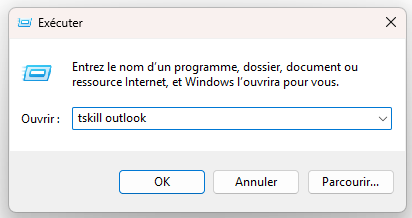
This should close the Outlook application. If this is not the case, please try the "Tskill olk" option.
Once this operation has been completed, open Outlook again and wait a few moments. Open a new email; the add-in should appear.
Following the first action, you can try closing and reopening Outlook three times in order to clear the caches of your Outlook application. This action is a simplified procedure recommended by Microsoft to clear the application caches.
To access the task manager on your Mac, here is the shortcut: Cmd⌘ + Option + R. Once the task manager is open, force close Outlook.
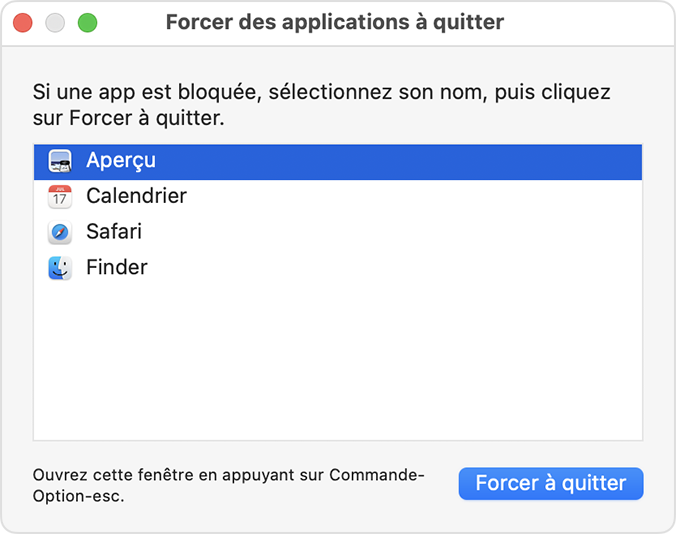
Once this operation has been completed, reopen Outlook, wait a few moments, then repeat the test.
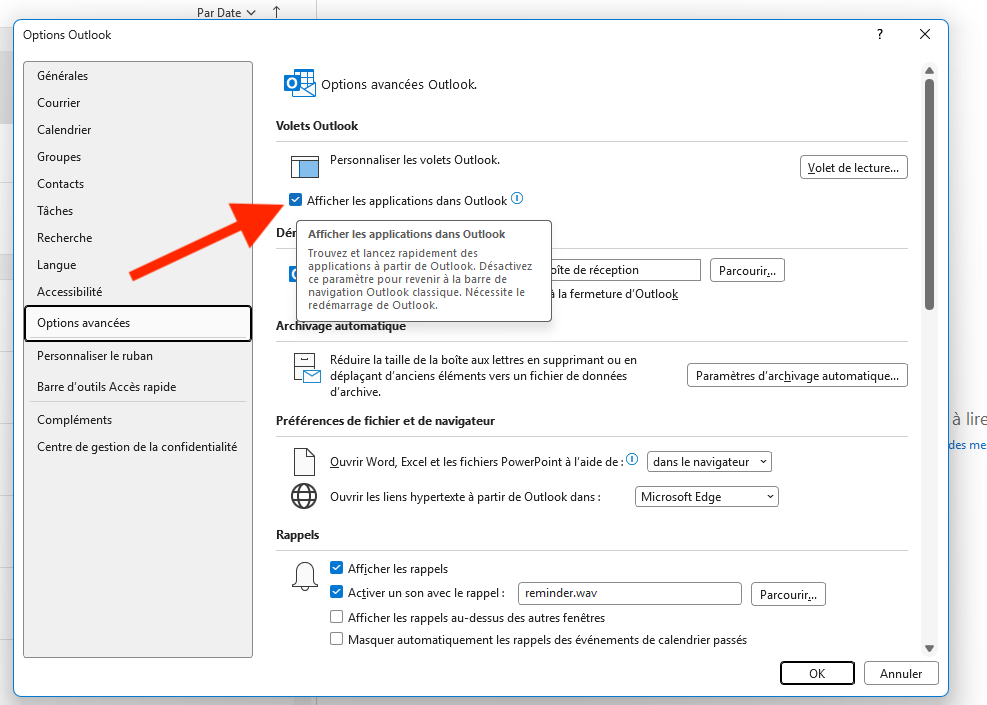
You may encounter a bug related to an Outlook option. To check, here is the path to locate it: File -> Options -> Advanced options
From the Outlook home page, you can access the File tab here:
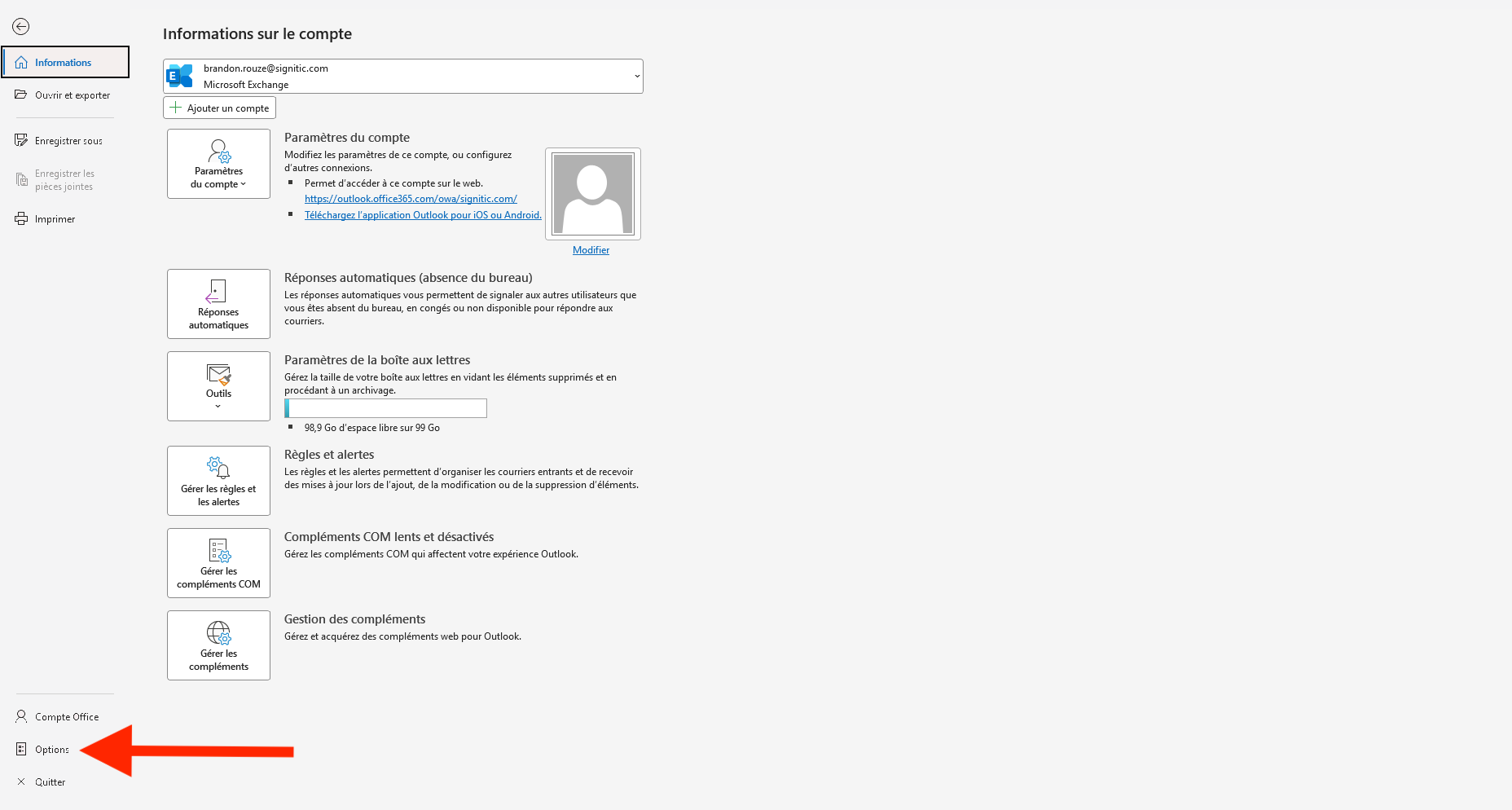
From the File tab, you can then access Advanced options by clicking on Options
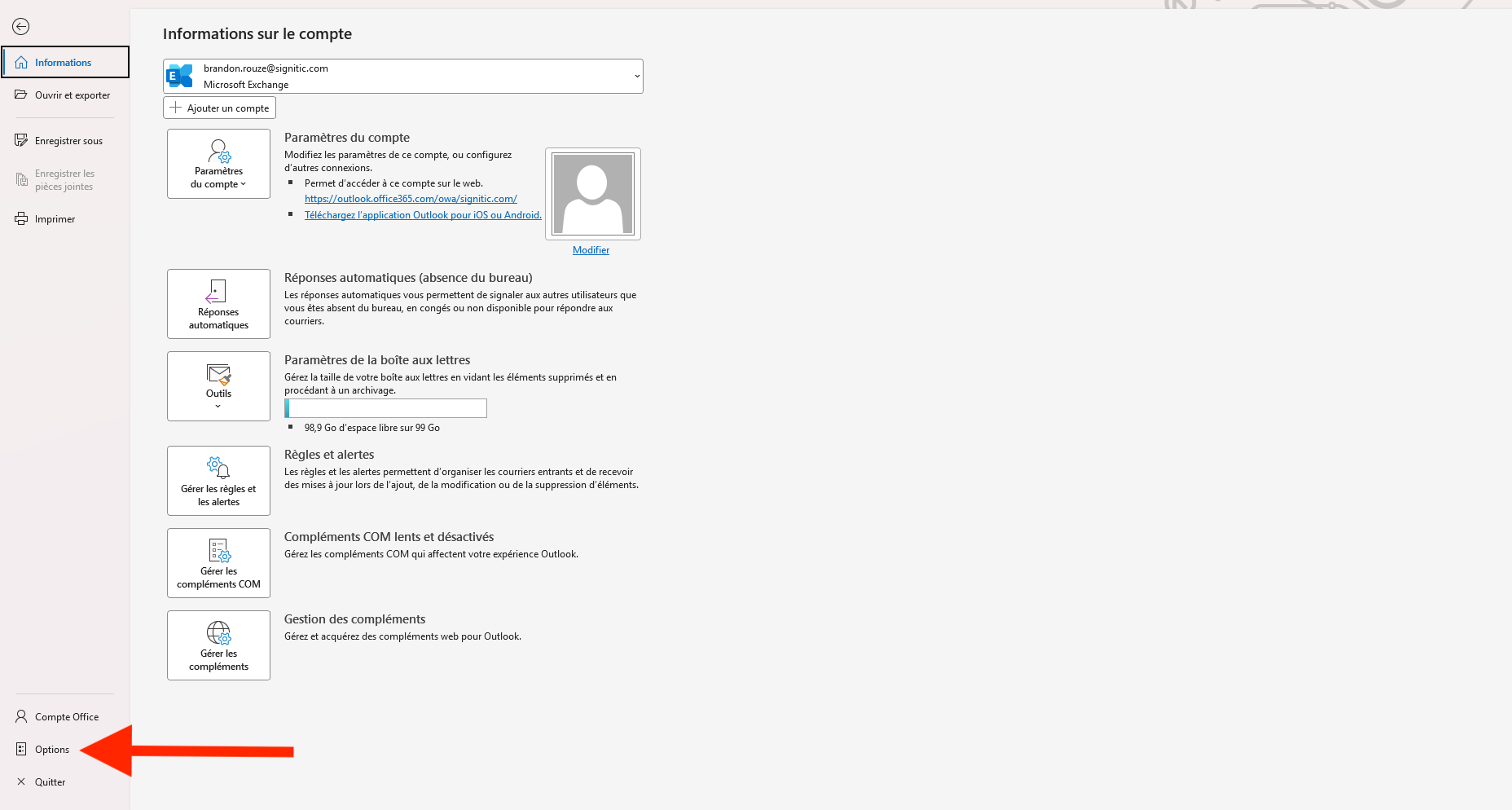
From the Advanced options tab, you can finally check the box “Show apps in Outlook”
Close the Outlook application, then perform the test again.
If the add-in still does not appear, please contact support via our chat.