Signitic inserts the signature into the signature block. If you use signatures to create your email templates, here is a solution recommended by Microsoft for this purpose.
You can use templates to send messages containing the same information. You can write and save a message as a template, then reuse it as needed. You may also complete the template before sending it by email.
In the Home menu of your Outlook application, select New Message.
Enter the desired content in the message body.
In the message window, select File > Save As.
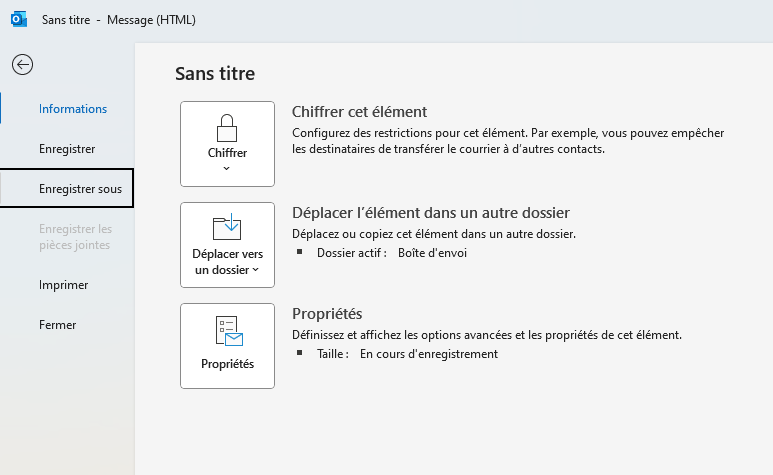
In the Save As dialog box, in the File Type list, select Outlook Template.
Enter the desired name for the template.
By default, templates are saved in the following location:
c :\users\username\appdata\roaming\microsoft\templates
Select New Items > More Items > Choose Form.
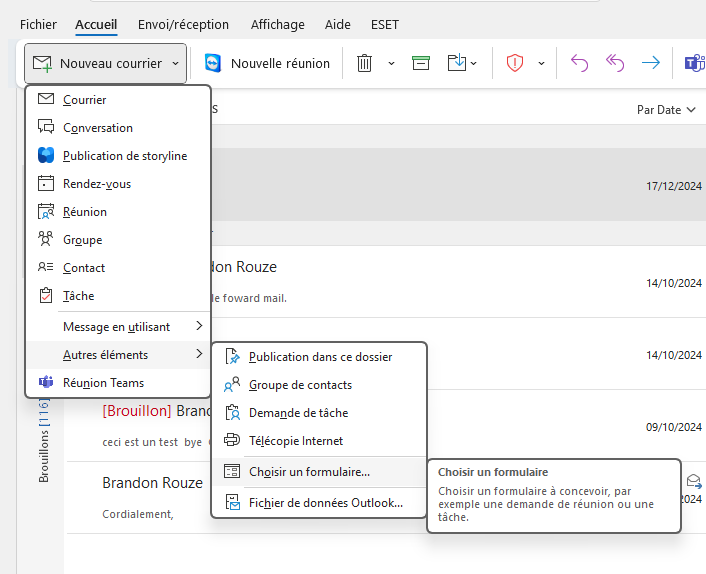
In the Choose Form dialog box, in the Look In list, click on User Templates in File System.
Select the template and click on Open.
Edit the necessary information, the recipients in the To, Cc or Bcc fields.
Open a reply or a new message.
Type the template text.
Select the text.
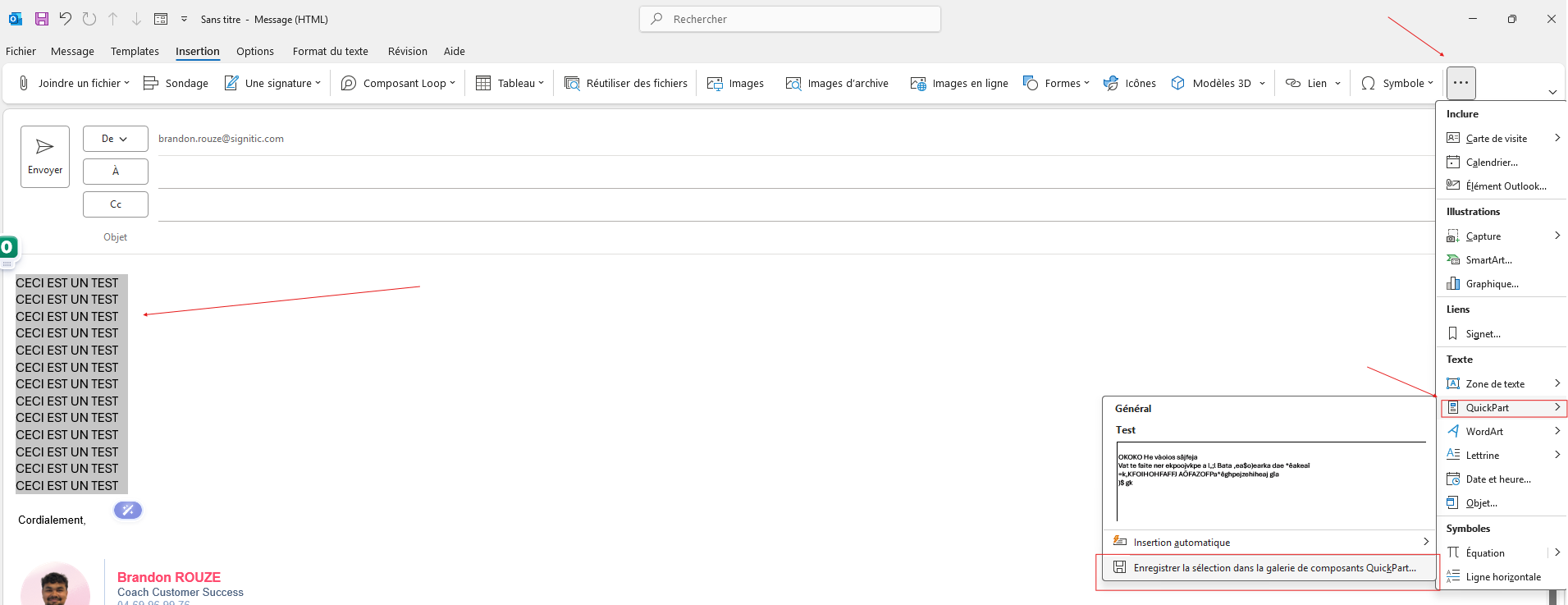
Insert → Quick Parts → Save selection to Quick Parts Gallery.
Give a name → Save.
Click in your Outlook reply.
Insert → Quick Parts.
Click on the template to insert it automatically.