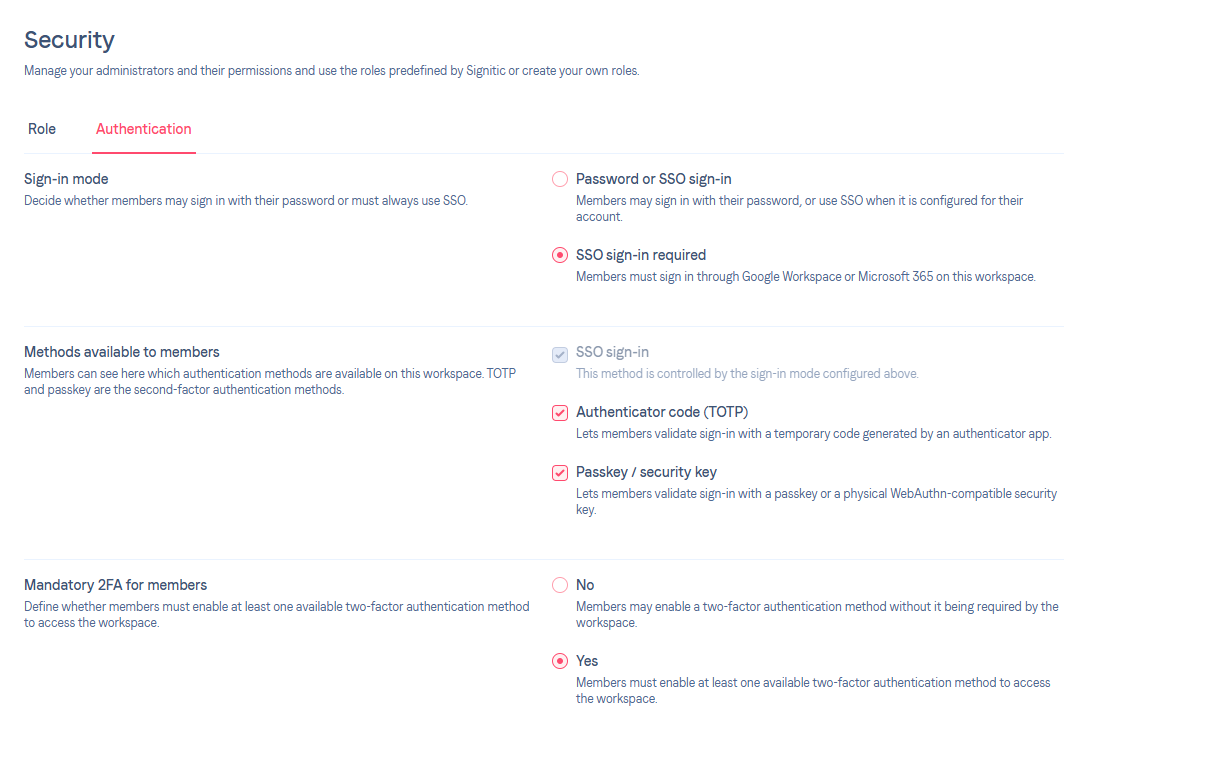
When you log in to Signitic, you enter your password. With 2FA, you will also be asked to confirm your identity via:
A 6-digit code generated by an application on your phone (Google Authenticator, Authy…)
A security key (fingerprint, Face ID, USB key…)
Go to Settings > Security and choose the method that suits you.
With an authentication application (TOTP):
Open your authentication application on your phone
Scan the QR code displayed on Signitic
Enter the 6-digit code to confirm
Save your 8 backup codes — they are displayed only once!
With a Passkey / Security key:
Add a Passkey
You will be able to use your Face ID or your Touch ID for this.
You can also use security applications (Password Manager)

After entering your password, Signitic will ask you to confirm your identity. Enter the code from your application, or use your security key according to the method you have configured.
Your administrator has made 2FA mandatory on your workspace. Follow the steps above to activate it.
They are displayed only once. If your application is still active, log in again as usual and generate new codes from Settings > Security.
This is normal if your administrator has made 2FA mandatory. You must always have at least one active method.
This feature is only available with a Premium subscription. Contact your administrator if needed.