Two-factor authentication adds an additional layer of security to your Signitic account. Even if someone obtains your password, they will not be able to log in without validating a second verification.
Two-factor authentication (or 2FA) requires you to confirm your identity in two different ways at each login. On Signitic, two methods are available:
Authentication code (TOTP): a one-time code generated by an application such as Google Authenticator or Authy, to be entered at each login.
Passkey / security key: a modern method using your device (fingerprint, Face ID, physical key) to validate your login without having to type a code.
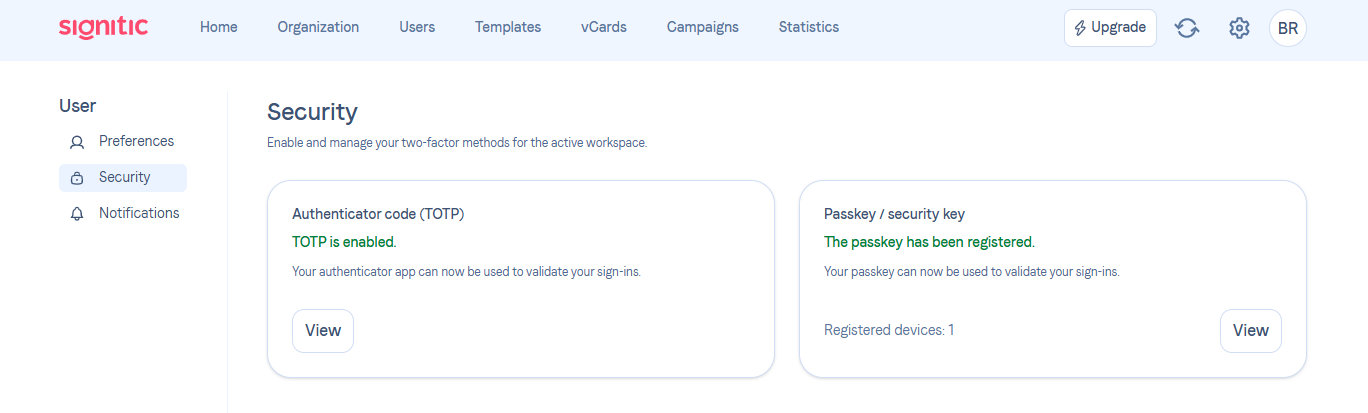
Go to My account > Security (or directly on app.signitic.com/account/security).
Enable the TOTP code:
In the "Authentication code (TOTP)" card, click on View to configure or manage the option.
Scan the QR code with your authentication application (Google Authenticator, Authy, etc.).
Enter the generated code to confirm activation.
Register a passkey:
In the "Passkey / security key" card, click on View to add or manage your registered devices.
Follow the instructions of your browser or device (fingerprint, Face ID, USB key, etc.).
Once registered, the number of registered devices is displayed directly on the card.
No one is sufficient. However, you can enable both for extra flexibility, for example, if you lose access to a device.
Contact Signitic support from the interface. Our team can verify your identity and help you regain access to your account.
It depends on the rules your administrator chooses to apply. They are the only user who can require the use of 2FA.
You're getting an error on Signitic when logging in from Firefox.
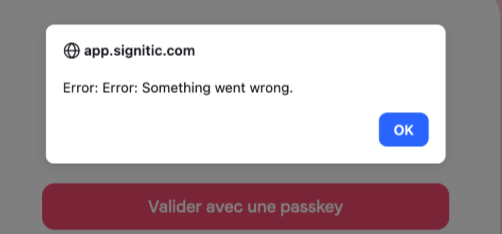
Search for “about:config” in the search bar. Click “Show only modified preferences.” Look for security.webauth.webauthn_enable_softtoken and set it to True.