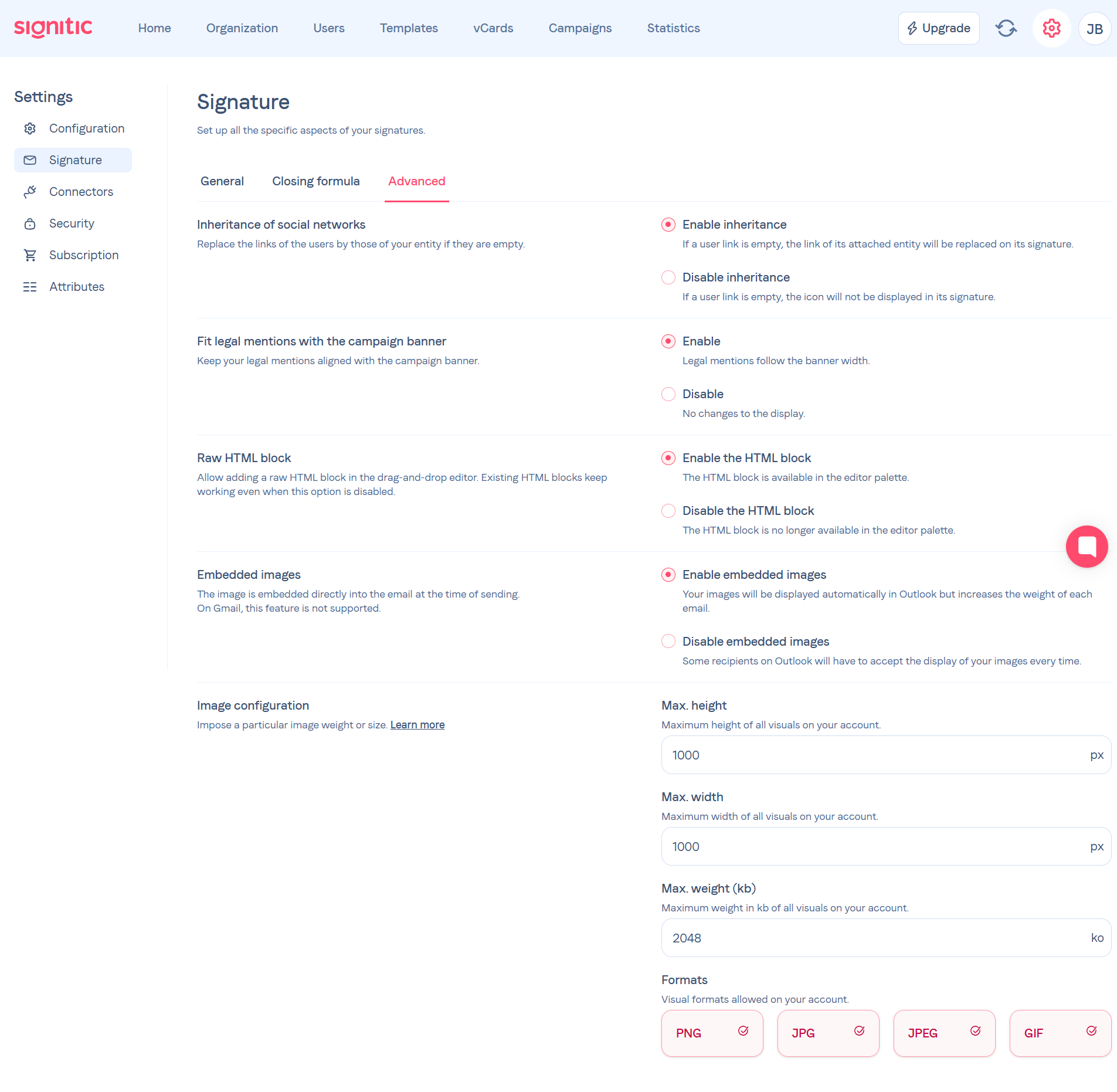
Go to Settings > Signature > Advanced and enable the Enable the HTML block option.
Open the Template tab, then click Edit to open the drag-and-drop editor.
In the left palette, add the HTML block.
When you select the block, the HTML code field appears in the right panel.
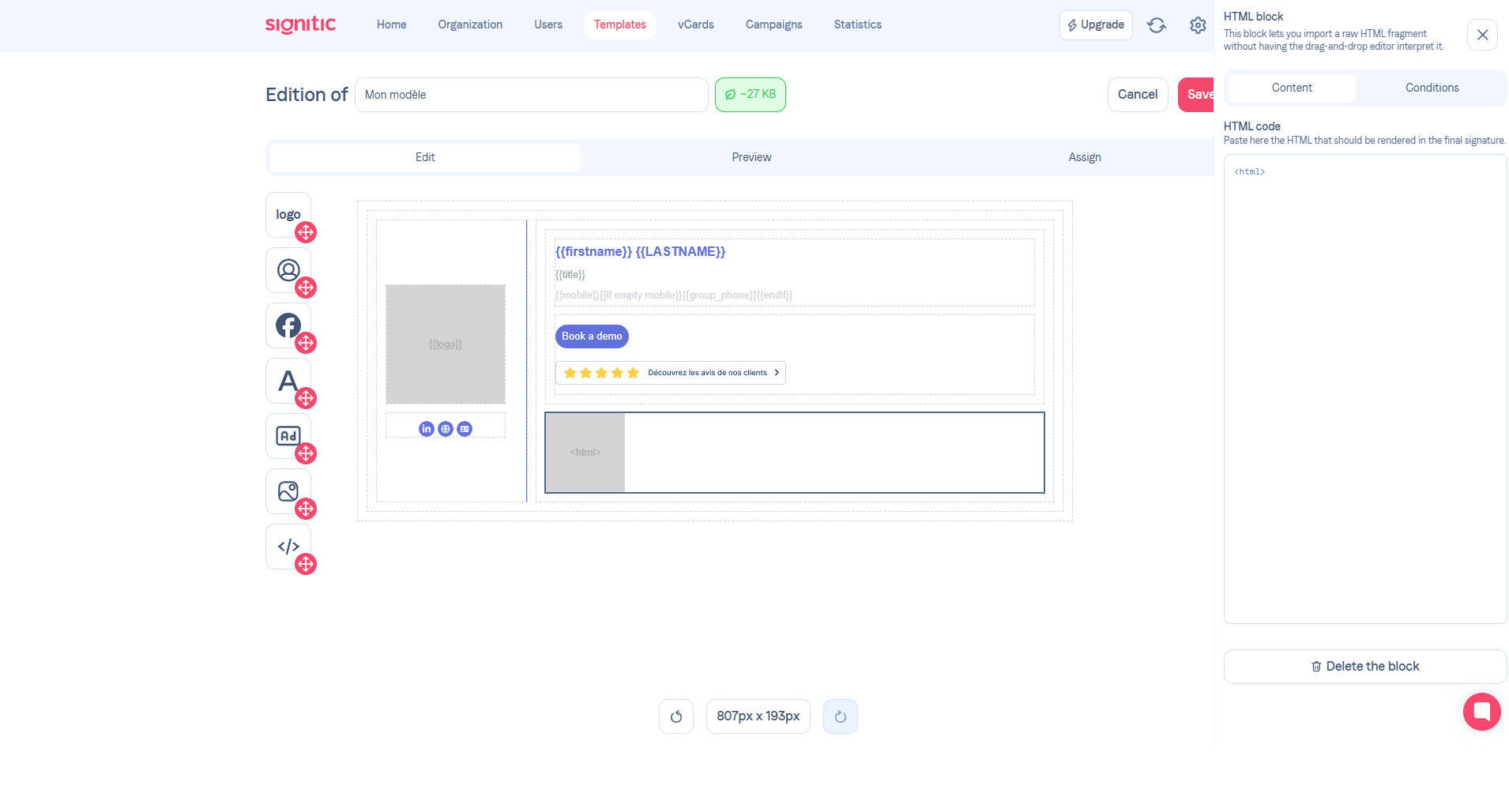
In the canvas, the block shows an <html> placeholder.
This is expected: the editor does not try to render arbitrary HTML directly inside the canvas.
In the final signature, the HTML fragment is rendered correctly.
The HTML is sanitized during preview and save.
Email-friendly structures remain allowed, including tables, text blocks, links, and images.
Sensitive tags such as script, iframe, and form are removed.
Links are limited to http, https, mailto, and tel.
Existing Twig tokens are preserved so signature variables continue to work.
To add a very specific layout fragment that is not available through the standard blocks.
To preserve an email rendering based on HTML already validated by your teams.
To answer an advanced need without misusing the other editor blocks.