---
title: "Use the HTML block in the drag-and-drop editor"
description: "Enable the HTML block at workspace level, add it in the template editor, and enter custom HTML directly in Signitic."
url: https://support.signitic.com/en/articles/9561114-use-the-html-block-in-the-drag-and-drop-editor
collection: "How Signitic works and the advanced editor"
updated: 2026-10-30
language: en
alternates: [fr, de, it, pt]
---
# Use the HTML block in the drag-and-drop editor
Enable the HTML block at workspace level, add it in the template editor, and enter custom HTML directly in Signitic.
> **Info:** The HTML block lets you insert a custom HTML fragment into the drag-and-drop editor when standard blocks are not enough.
## **❶** Enable the HTML block
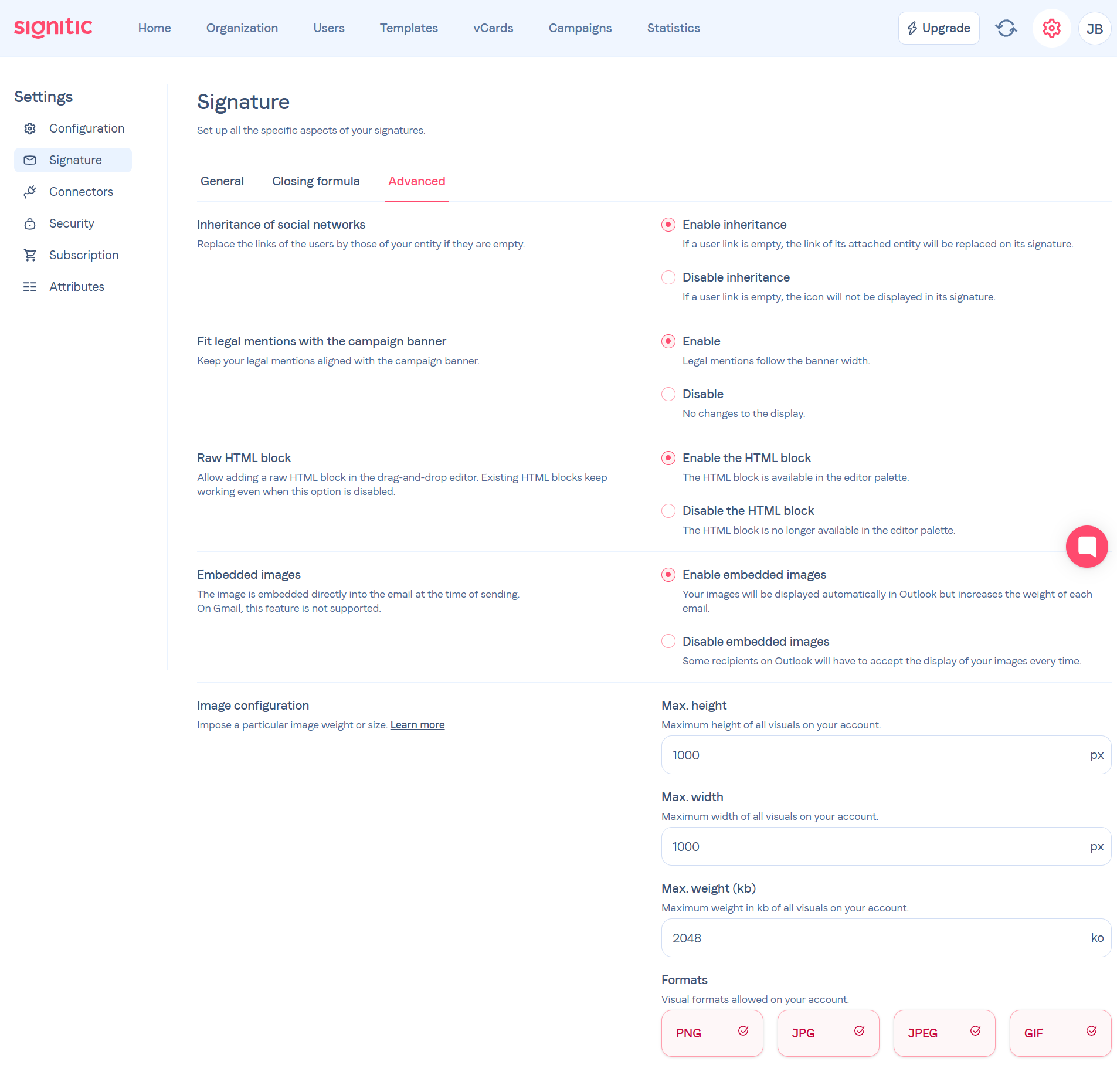
Go to **Settings > Signature > Advanced** and enable the **Enable the HTML block** option.
## **❷** Add the block to a template
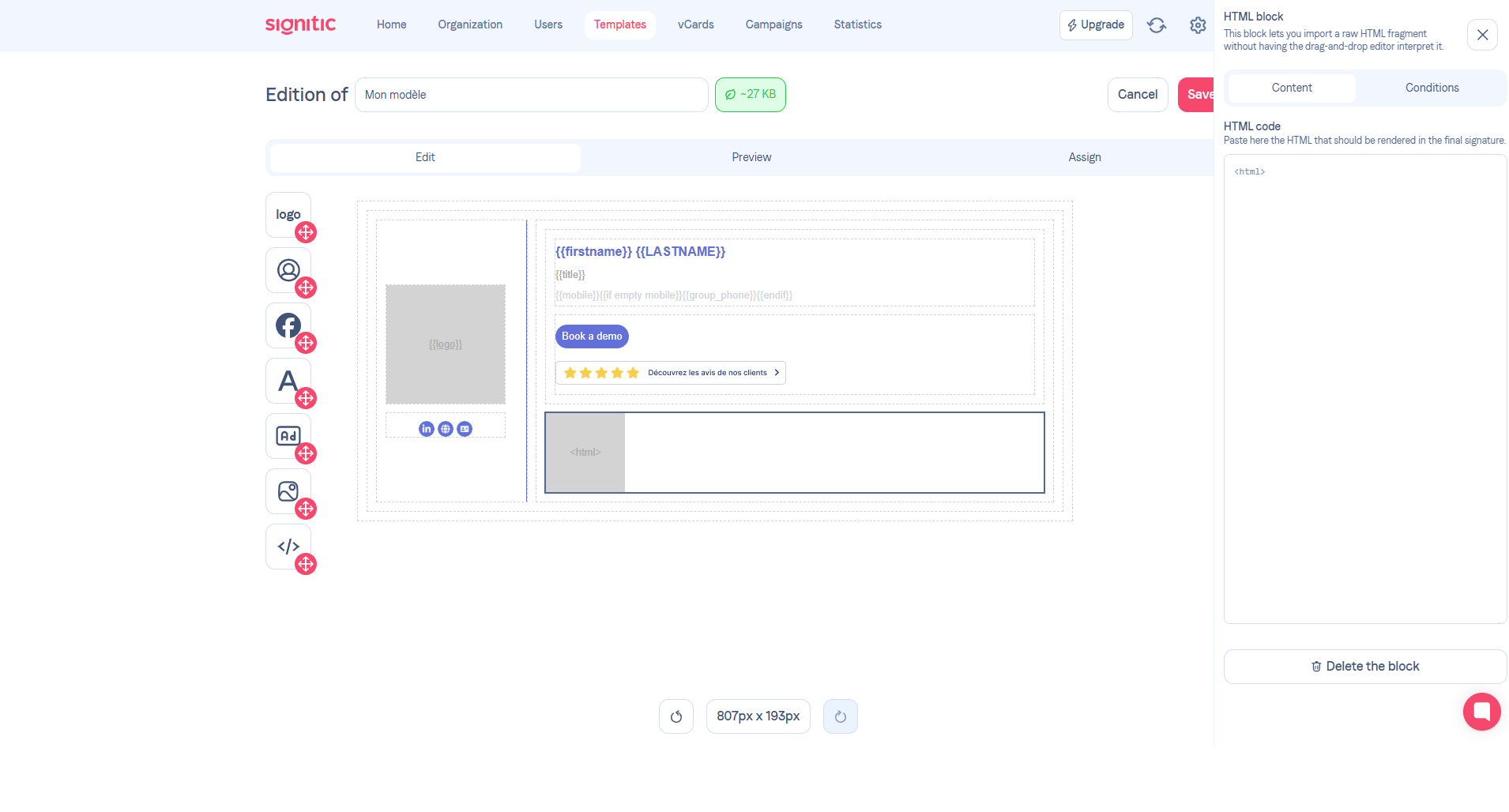
Open the **Template** tab, then click **Edit** to open the drag-and-drop editor.
In the left palette, add the **HTML block**.
When you select the block, the **HTML code** field appears in the right panel.
## **❸** Understand what you see in the editor
- In the canvas, the block shows an `` placeholder.
- This is expected: the editor does not try to render arbitrary HTML directly inside the canvas.
- In the final signature, the HTML fragment is rendered correctly.
## **❹** Understand the safety rules
- The HTML is sanitized during preview and save.
- Email-friendly structures remain allowed, including tables, text blocks, links, and images.
- Sensitive tags such as `script`, `iframe`, and `form` are removed.
- Links are limited to `http`, `https`, `mailto`, and `tel`.
- Existing Twig tokens are preserved so signature variables continue to work.
## **❺** When to use this block
- To add a very specific layout fragment that is not available through the standard blocks.
- To preserve an email rendering based on HTML already validated by your teams.
- To answer an advanced need without misusing the other editor blocks.
> **Warning:** **Important:** disabling the option removes the block from the palette, but HTML blocks already added to templates keep working.
> **Info:** **Good to know:** the placeholder in the editor does not mean the content is lost. It is only a visual hint while editing.
> **Success:** **Keep in mind:** the HTML block is mainly useful for advanced needs. For simple content, native blocks remain easier to maintain.