This session allows us to collect useful information related to Gmail loading, Signitic extension initialization, and actions performed at the time the issue occurs.
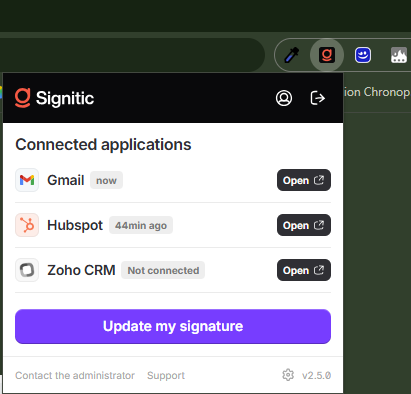
You must have access to Gmail from the browser where the Signitic extension is installed.
Reproduce the issue only after starting the diagnostic log.
The downloaded file must be transmitted in response to your support request.
Open Gmail.
Click on the Signitic extension icon in your browser.
At the bottom of the extension window, click on the small gear icon, located to the left of the version number.
In the Diagnostic Log section, click Start.
Close the extension window.
Fully refresh the Gmail page. This step is strongly recommended, as it allows the loading and initialization of Gmail and the Signitic extension to be recorded.
Once Gmail has reloaded, reproduce the issue exactly as it normally occurs.
Open the Signitic extension again, then return to the Diagnostic Log.
Click Download JSON.
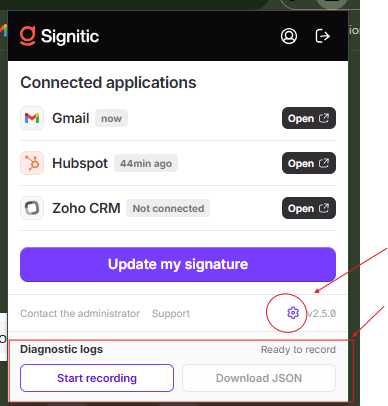
Downloading automatically stops the recording. A file in the following format is saved to your downloads folder:
signitic-diagnostics-AAAA-MM-JJ...json
Please submit this file in response to your support request so that our team can analyze the situation.