Companies often use shared mailboxes such as [email protected], [email protected] or [email protected]. In Microsoft 365, users can be authorized to send messages from these mailboxes. Until now, keeping the same access up to date in Signitic could require manual operations.
Automatic delegation synchronization allows Signitic to stay synchronized with Microsoft 365. Users have the appropriate information and signatures for shared mailboxes, while Microsoft 365 remains the source of truth for delegation rights.
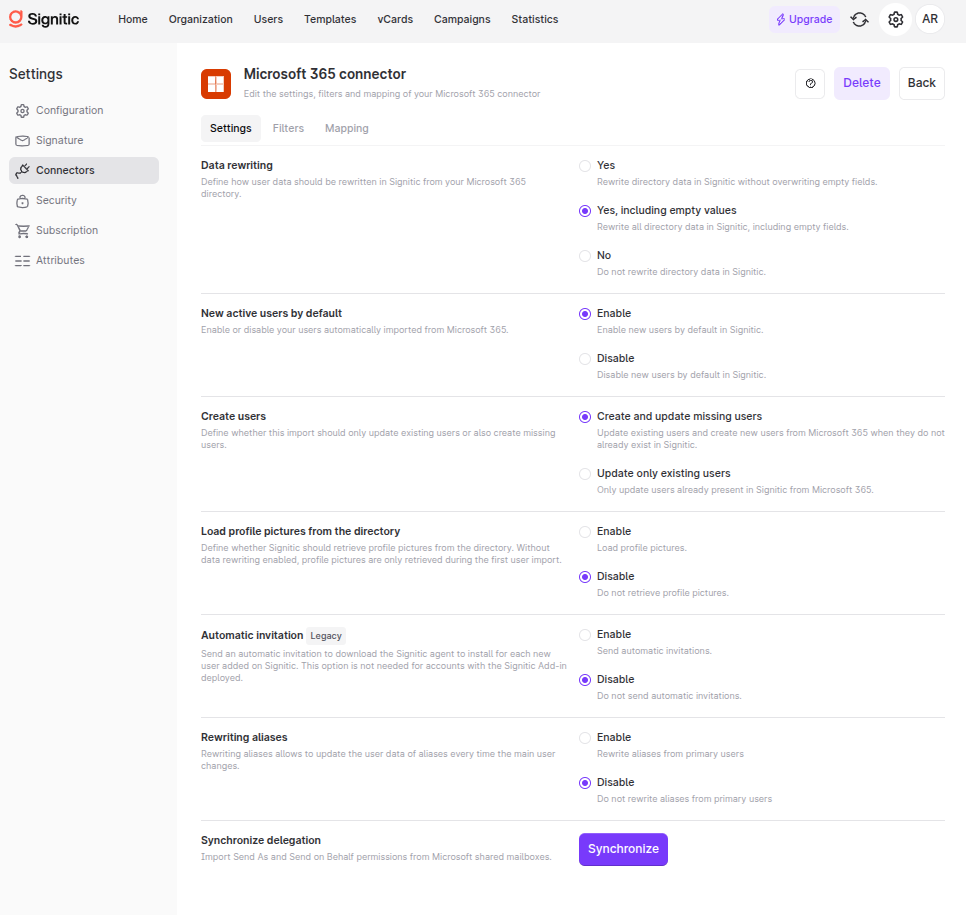
Automatic synchronization helps administrators to:
reduce manual configuration in Signitic;
keep access consistent with rights configured in Microsoft 365;
avoid oversights when a delegation is granted or revoked;
more easily manage a large number of shared mailboxes.
Signitic imports the following Microsoft 365 delegation types for shared mailboxes:
Send As (SendAs) : the recipient sees that the message comes directly from the shared mailbox.
Send on Behalf (SendOnBehalfOf) : the recipient sees that the user sent the message on behalf of the shared mailbox.
Other mailbox permissions, such as Full Access, are not affected by this synchronization.
Synchronization follows the lifecycle of delegations in Microsoft 365.
An administrator grants a user the Send As or Send on Behalf permission for a shared mailbox in Microsoft 365.
The next successful import of Microsoft users retrieves this delegation.
Signitic gives the user access to the corresponding information and signatures of the shared mailbox.
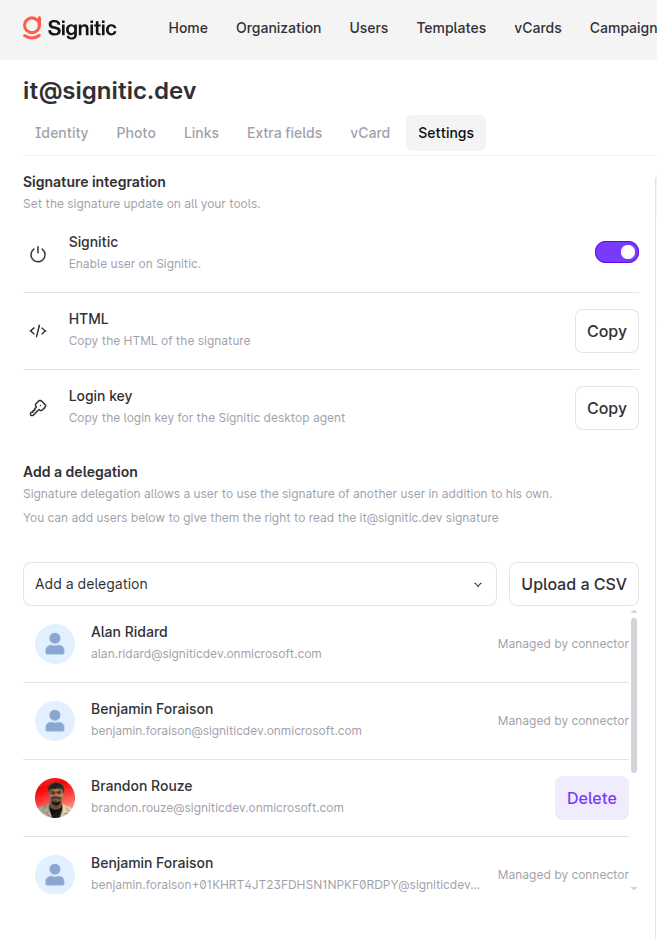
An administrator revokes the permission in Microsoft 365.
The next successful import of Microsoft users detects that the delegation no longer exists.
Signitic removes the corresponding delegation managed by the connector.
This is a one-way synchronization from Microsoft 365 to Signitic: both additions and deletions are replicated in Signitic, but Signitic never creates, modifies, or deletes delegation rights in Microsoft 365.
A manual delegation in Signitic is preserved if it does not exist in Microsoft 365.
If this same delegation is subsequently returned by Microsoft 365, it becomes managed by the connector. From that point on, future synchronizations can update or delete it to align it with Microsoft 365.
Delegations are updated after each successful import of Microsoft users. Changes made in Microsoft 365 therefore appear in Signitic during the next successful synchronization: they are not applied immediately after the Microsoft setting is changed.
This feature is available only for Microsoft 365 connectors. To enable it, grant the required permissions and validate the connection, follow the article "Configure the connection for Microsoft delegation synchronization"
Once validation is successful, delegation synchronization is enabled.
Disabling this feature stops future automatic updates. Existing rights in Microsoft 365 are not modified. A new Microsoft connection is required to reactivate synchronization.

To discover the complete permissions configuration, see Configure Microsoft 365 delegation synchronization for Signitic.
Verify that the user has the Send As or Send on Behalf permission for the shared mailbox in Microsoft 365, then restart the Microsoft user synchronization.
No. Microsoft 365 remains the source of truth. Signitic only reads the supported delegation rights and uses them to provide the appropriate information and signatures.
No, unless that same delegation was also imported from Microsoft 365. Once Microsoft 365 provides this delegation, it becomes managed by the connector and can be deleted from Signitic if the Microsoft permission is subsequently revoked.
See the "Troubleshooting" section of the article "Configure the connection for Microsoft delegation synchronization"