This guide explains how a Microsoft 365 administrator can authorize Signitic to read the Send As and Send on Behalf Of rights of shared mailboxes.
Signitic has read-only access. The solution does not create, modify, or revoke any delegation rights in Microsoft 365.
Upon login, the enterprise application Signitic - Delegation Synchronization requests the following Office 365 Exchange Online application permissions:
Exchange.ManageAsApp, used by the current synchronization;
Exchange.ManageAsAppV2, included to prepare for future Exchange Online integration improvements.
These permissions allow Signitic to authenticate with Exchange Online. By themselves, they do not grant access to Exchange data: a read-only role assignment is also required.
The existing Signitic Microsoft 365 connector uses its Microsoft Graph application permission Domain.Read.All to identify your tenant's onmicrosoft.com domain. The application dedicated to delegations does not require an additional Microsoft Graph permission for this operation.
You must have:
of an administrator account belonging to the same Microsoft tenant as the Signitic connector;
of the right to grant administrator consent at the organization level;
of the right to assign the Microsoft Entra role Global Reader to an enterprise application.
A Privileged Role Administrator (Privileged Role Administrator) or a Global Administrator (Global Administrator) can perform this assignment.
These privileges are necessary only for the person performing the configuration. Do not assign the Global Administrator or Exchange Administrator roles to the Signitic enterprise application.
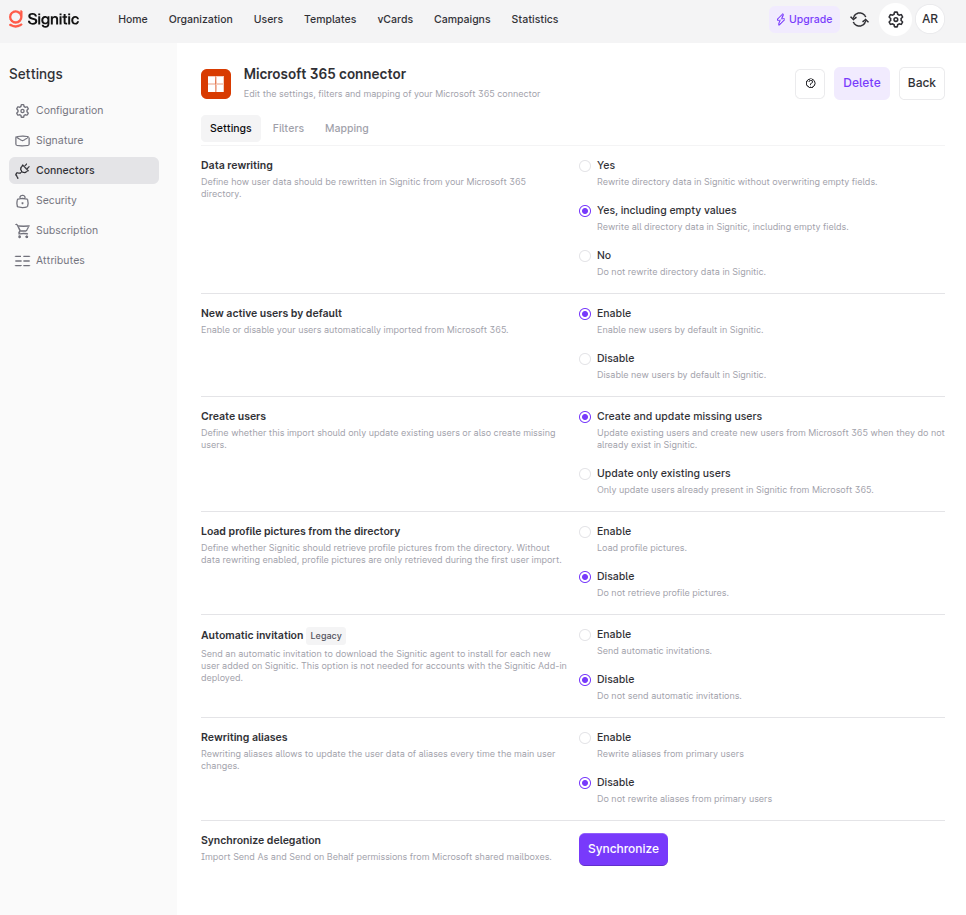
In Signitic, go to Settings > Connectors.
Edit the Microsoft 365 connector.
In the Synchronize delegations section, select Synchronize.
Sign in with an administrator account from the same Microsoft tenant as the connector.
Review the requested Office 365 Exchange Online application permissions.
Grant admin consent for your entire organization.
Open the Microsoft Entra administration center.
Go to Enterprise applications > Signitic - Delegation Synchronization > Permissions.
Verify that admin consent is granted for:
Exchange.ManageAsApp ;
Exchange.ManageAsAppV2.
Both permissions must be granted in the same Microsoft tenant used by the Signitic connector.
You must choose only one of the following two configurations:
Step 3.1 — General reader: simple and quick configuration.
Step 3.2 — Exchange RBAC: recommended configuration applying the principle of least privilege.
These two configurations are alternatives: it is not necessary to combine them.
The Global Reader role (Global Reader) provides read access to the Microsoft 365 administration information necessary for synchronization. It does not allow Signitic to modify delegation rights.
In the Microsoft Entra administration center:
Go to Roles and administrators > All roles.
Search for and open Global Reader (Global Reader).
Select Add assignments.
Search for Signitic - Delegation Synchronization.
Select the enterprise application and confirm the assignment.
Verify that the assignment targets the enterprise application, not the administrator performing the configuration.
The Global Reader role provides read access to administration information across multiple Microsoft 365 services. It is not limited to Exchange Online.
This configuration is recommended to apply the principle of least privilege. It limits the Signitic application's permissions to Exchange recipient information necessary for synchronization.
The application receives only the Exchange role:
View-Only Recipients (View only recipients).
The administrator performing the configuration must be able to manage Exchange role groups. In particular, they must have the Role Management role (Role management).
If your organization uses Microsoft Entra Privileged Identity Management (PIM), temporarily activate your Exchange Administrator role before you begin.
These rights are necessary only for the administrator performing the configuration. They must not be assigned to the Signitic application.
In the Microsoft Entra administration center:
Go to Enterprise applications.
Open Signitic - Delegation Synchronization.
In Overview, copy:
the Application ID;
the Object ID.
Be sure to use the Object ID of the enterprise application present in your Microsoft 365 environment.
In the Exchange administration center:
Go to Roles > Administrator Roles.
Select Add Role Group.
Enter:
name: Signitic Delegation Readers ;
description: Read-only access used by Signitic delegation synchronization.
Keep the write scope proposed by default.
Select only the View-Only Recipients role.
Verify the configuration, then create the group.
Open PowerShell with the Exchange administrator account, then connect to Exchange Online:
Install-Module ExchangeOnlineManagement -Scope CurrentUser
Connect-ExchangeOnline -Device
Create the Exchange service principal reference by replacing the values in angle brackets:
$signiticServicePrincipal = New-ServicePrincipal `
    -AppId "<ID_APPLICATION_SIGNITIC>" `
    -ObjectId "<ID_OBJET_APPLICATION_ENTREPRISE_SIGNITIC>" `
    -DisplayName "Signitic delegation"
If the reference already exists, retrieve it with:
$signiticServicePrincipal = Get-ServicePrincipal `
    -Identity "<ID_OBJET_APPLICATION_ENTREPRISE_SIGNITIC>"
Then add the application to the role group:
Add-RoleGroupMember `
    -Identity "Signitic Delegation Readers" `
    -Member $signiticServicePrincipal.Identity
Verify that the application belongs to the group, then close the connection:
Get-RoleGroupMember -Identity "Signitic Delegation Readers"

Disconnect-ExchangeOnline -Confirm:$false
The result of Get-RoleGroupMember must contain the reference of the Signitic application.
Wait a few minutes (up to 30 minutes) for the Microsoft Entra and Exchange Online permissions to propagate.
Return to the Microsoft 365 connector in Signitic.
Select Validate permissions.
Once validation is successful, delegation synchronization is enabled. It runs after each successful import of Microsoft users.
If validation fails, check the following points:
the administrator consent for Exchange.ManageAsApp and Exchange.ManageAsAppV2 has been granted;
the permissions have been granted in the same Microsoft tenant as the Signitic connector;
the Microsoft 365 connector has been authorized in this tenant;
the Global Reader role is assigned to the enterprise application Signitic - Delegation Synchronization, and not to an administrator user;
sufficient time has been allowed for the propagation of permissions and the role;
the conditional access or workload identity policies allow the Signitic application to access Exchange Online.
Do not attempt to resolve a validation failure by assigning the Global Administrator or Exchange Administrator roles to the Signitic application.
If validation still fails, contact Signitic support by providing the connector name and the approximate time of validation. Never transmit an access token.