This guide walks you through setting up SAML authentication between Microsoft Entra and Signitic.
Signitic recommends connecting directly with Microsoft (social login), which does not require any SAML configuration. A dedicated SAML connection is suitable for organizations with advanced authentication requirements.
Make sure you have the necessary permissions to create and configure an application in Microsoft Entra.
Make sure you have access to Signitic's security settings.
Obtain the signitic-saml-metadata.xml metadata file from Signitic before starting the import.
Open the Microsoft Entra application gallery in the Azure portal using the link below.
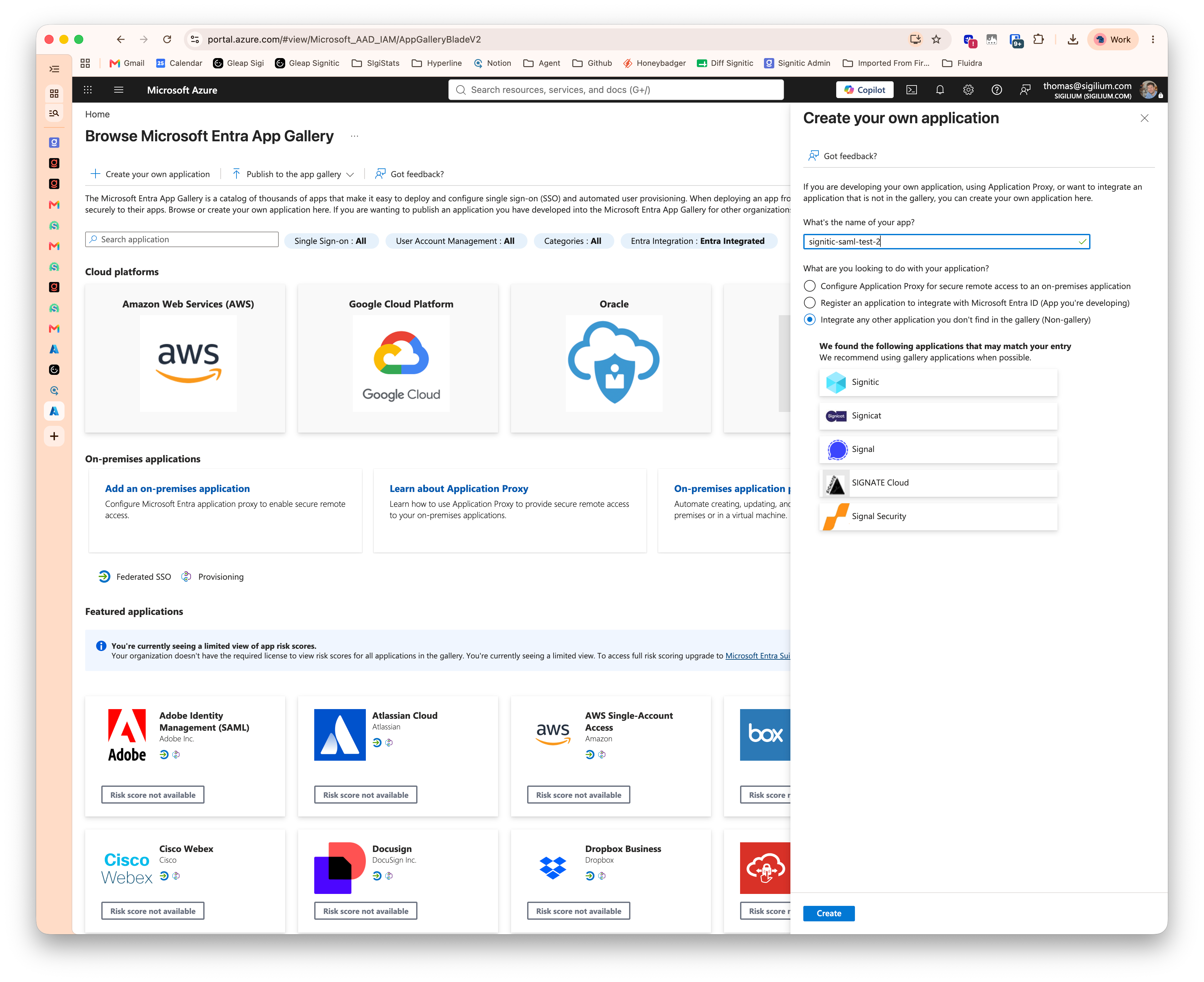
Click “Create your own application” and create the application dedicated to Signitic.
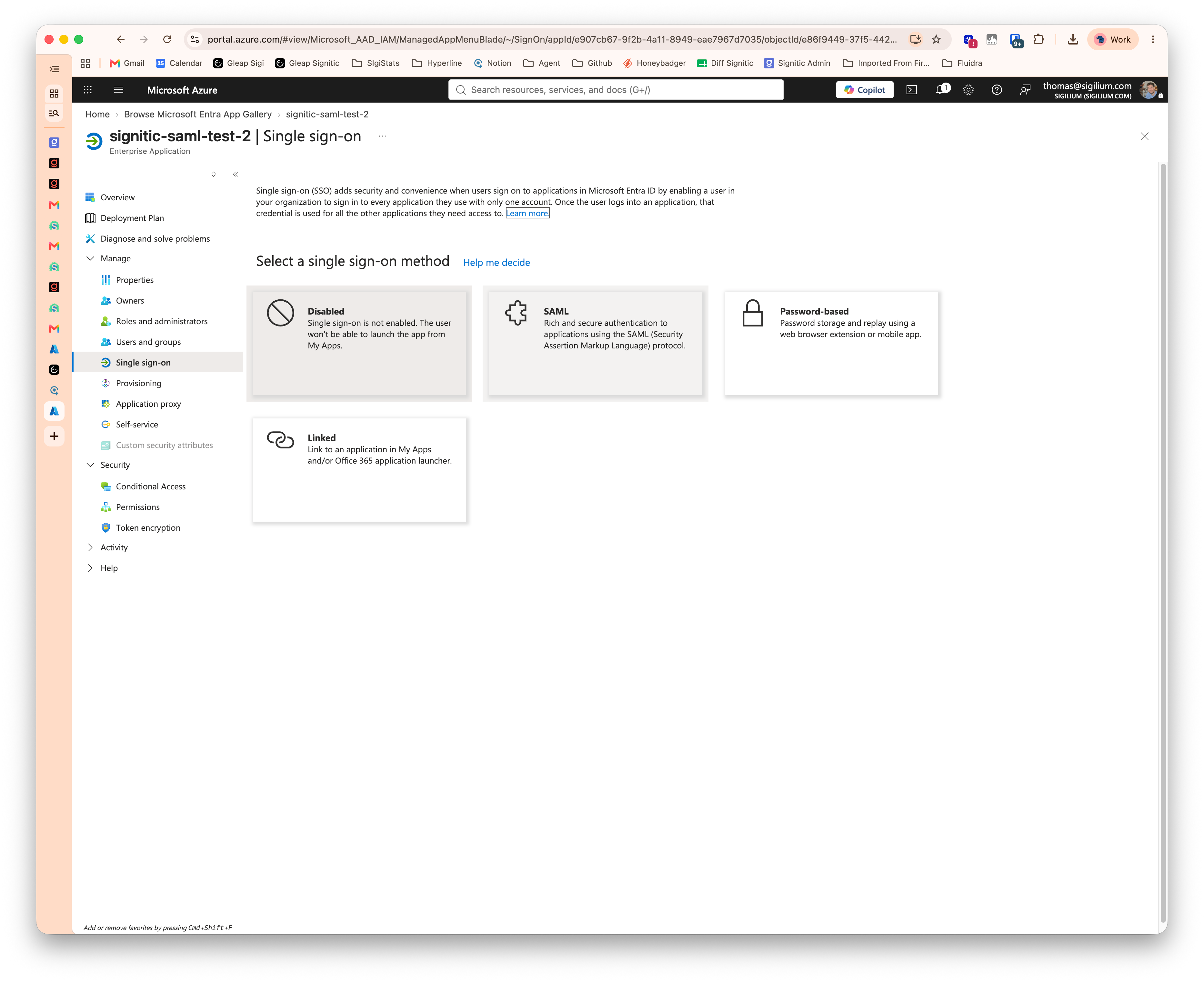
In the application, open “Single sign-on,” then select “SAML.”
Open the Microsoft Entra application gallery
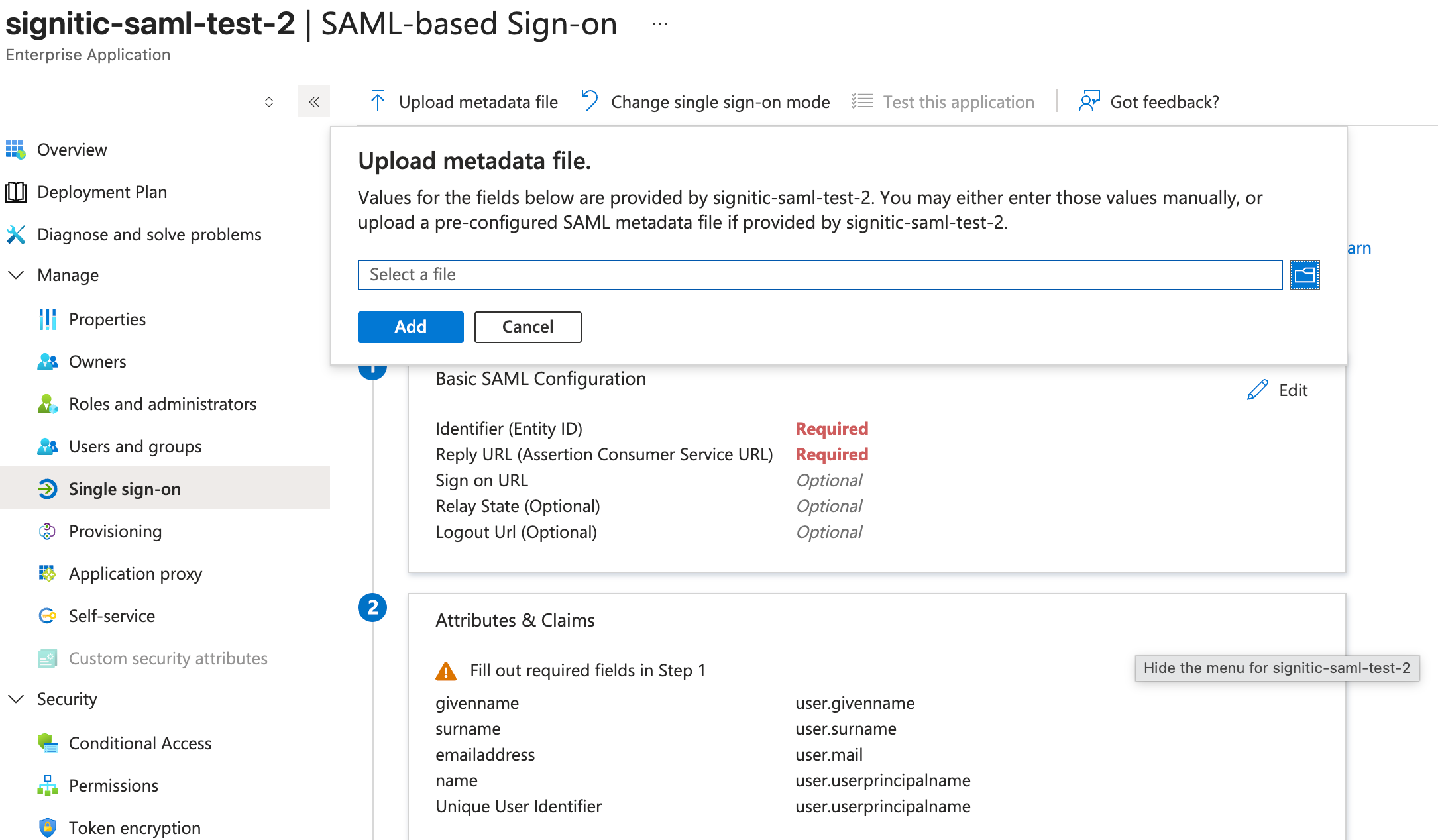
Import the metadata file provided by Signitic.
After importing, close the “Basic SAML Configuration” panel without saving, as instructed in the Signitic procedure.
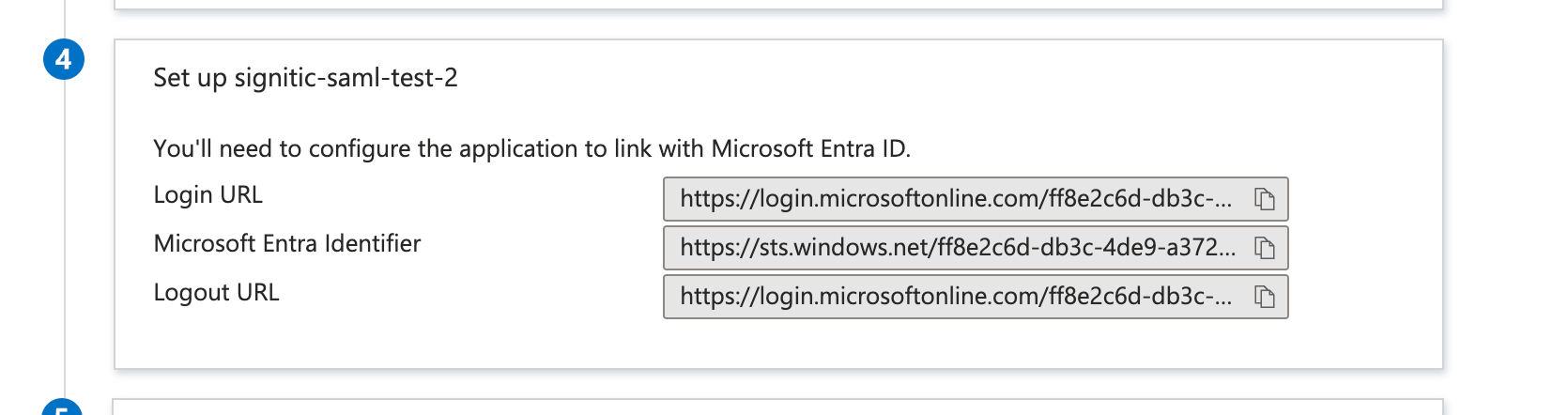
Copy the three application values: “Login URL,” “Microsoft Entra Identifier,” and “Logout URL.”
Download the “Certificate (Base64)” file. Rename it to certificate.txt, open it in a text editor, and copy its entire contents.
In Signitic, open Settings > Security.
Fill in the SAML fields according to the mappings below.
Value to copy into Microsoft Entra | Field to fill in Signitic |
|---|---|
Microsoft Entra Identifier | IdP entity ID |
Login URL | Sign in URL |
Logout URL | Sign out URL |
Paste the complete certificate content into the field provided, keeping the beginning and ending lines:
-----BEGIN CERTIFICATE-----
Your Base64 certificate content
-----END CERTIFICATE-----
Save the configuration in Signitic.
In Microsoft Entra, run the application's authentication test and verify that the connection to Signitic is successful.
If the test fails, check that the three values match and that the complete certificate is present. Contact Signitic support if you do not have the metadata file or if the problem persists.