This guide is for users who want to use their Signitic signature in Thunderbird on their Windows computer.
Download the Signitic Agent for Windows to your computer.
Download the application
Warning : Several versions of the Signitic Agent are available. Make sure you choose the one that matches your machine.
The application will begin installing immediately.
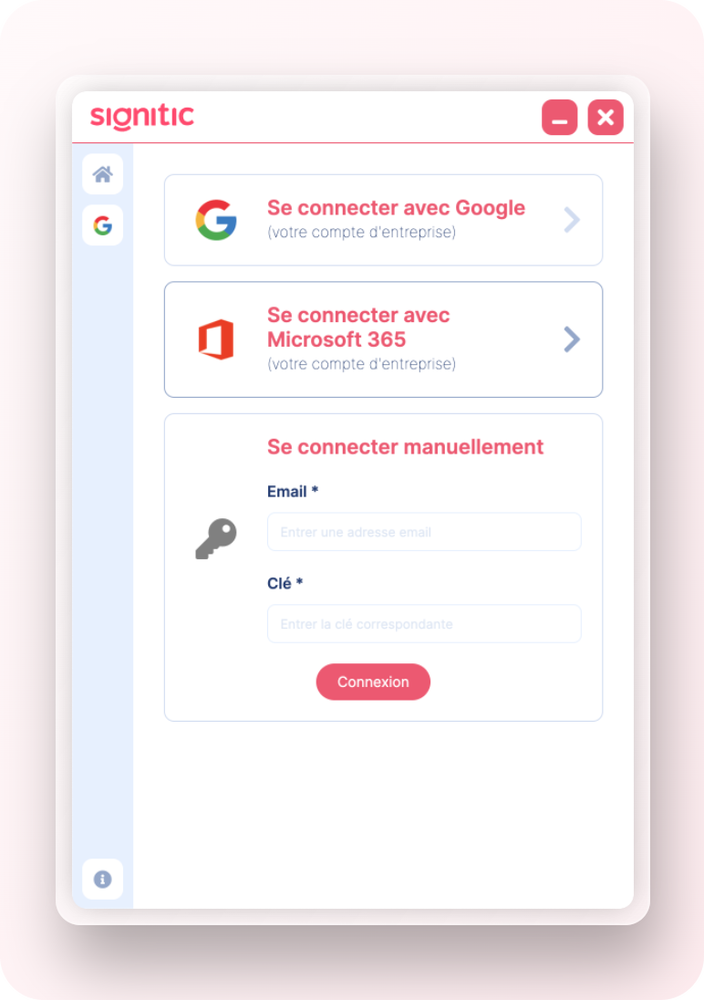
Sign in using Google, Office 365 or your login key.
If Outlook is not installed on your computer, please create a path for signatures to be added to your machine.
C:\Users\###########{{Username}}\AppData\Roaming\Microsoft\Signatures###########{{Username}} should be replaced with the session username.
Note : The AppData folder is hidden.
In the Signitic client, update your signature by clicking the "Update" button at the bottom of your profile page. The signatures should now appear in the Signatures folder.
In the Thunderbird menu, go to Tools then Account Settings.
Note : If the menu bar is not visible, press the ALT key on your keyboard to display it.
In the left-hand menu, select the relevant email account, then check the box Attach the signature from a file (text, HTML, or image).
Then click Choose, navigate to the destination folder mentioned in step 4, then select the signature you want.
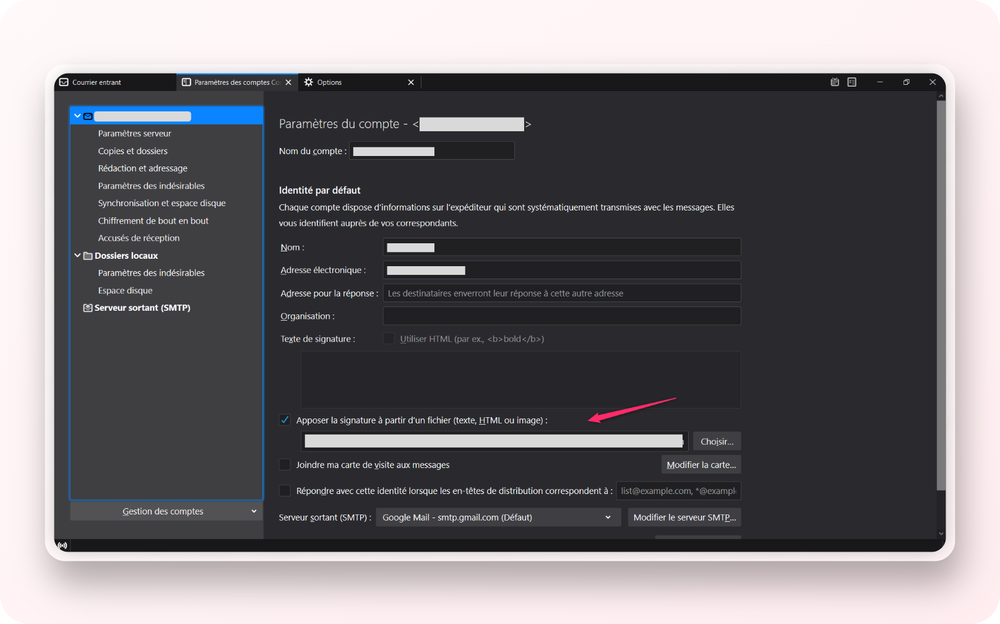
And that's it, your Signitic signature will be updated every night.
If you would like to have a signature for replies and/or forwards, go to Tools, then Composition and addressing.
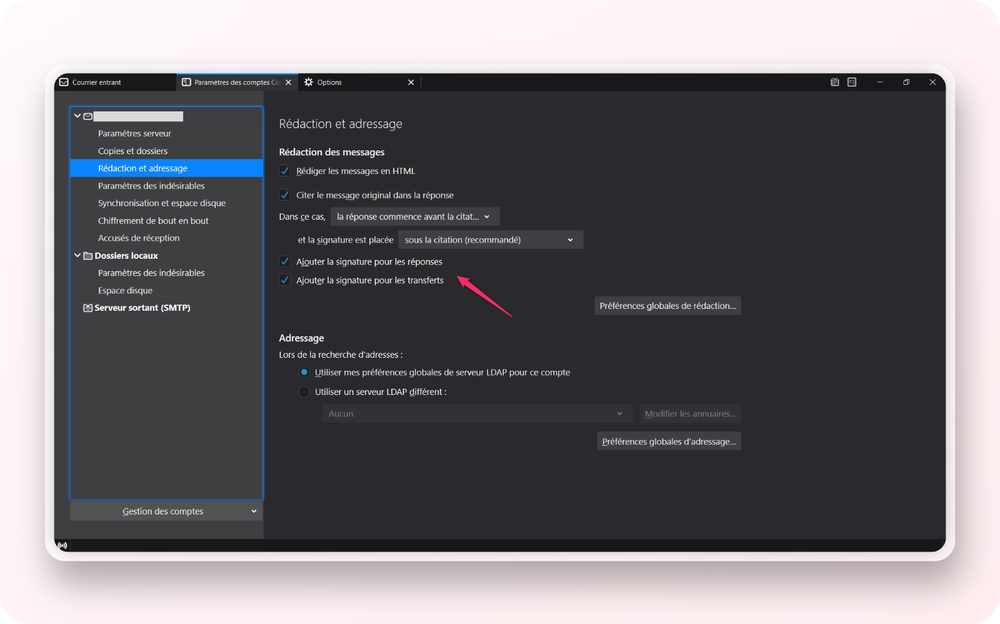
To make sure your signature appears below your reply message, stay on the same page.
Below "quote the original message in the reply" select reply starts before the quote and then select the option below below my reply (above the quote).
If you have display issues in Thunderbird, check that HTML is enabled in Preferences -> View -> Message Body -> Original HTML.