This guide is intended for companies and associations using Google Workspace as their email manager. At the end of this guide, you will be able to deploy your signatures on Gmail for the users in your directory.

If the administrator used for the connection changes later, you will need to reconnect or contact support.
You can also add our Google extension to use different signatures depending on whether your recipients are internal or external to your organization:
Install the Signitic extension on Chrome
How to install the Signitic extension individually and deploy an extension in bulk for all your users on Chrome.
Install the Signitic extension on Edge
How to use the Signitic extension on Edge.
Go to the Connectors tab in the Signitic administration interface.
Select Google Workspace from the available options.
Enter the administrator’s email address, then click on “Install”.
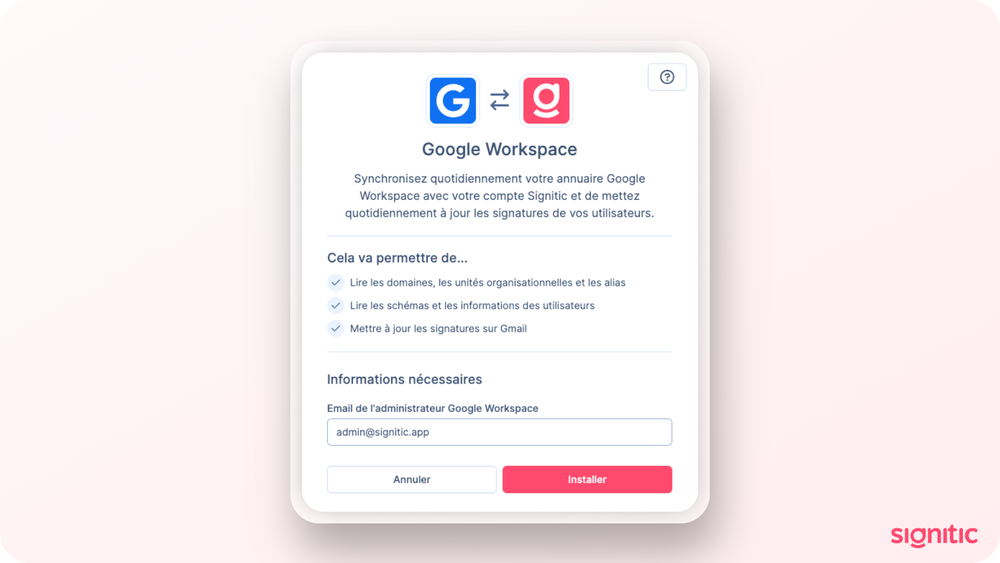
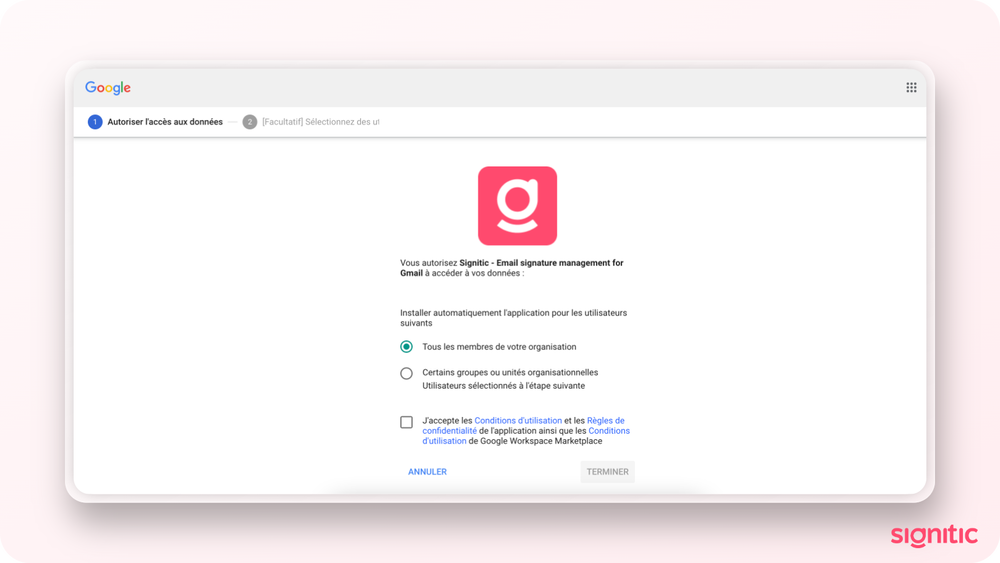
A new Google Workspace window opens. You must accept the various requested permissions in order to establish the connection.

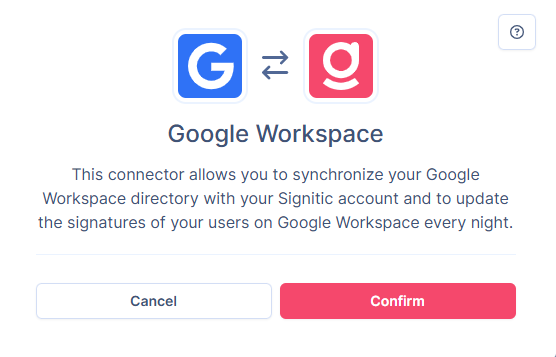
If the connection is successful, the Google Workspace window will close automatically.
Return to your Signitic interface and click on “Install”.
Your Google directory is now fully synchronized with Signitic. Your domains and users are imported.
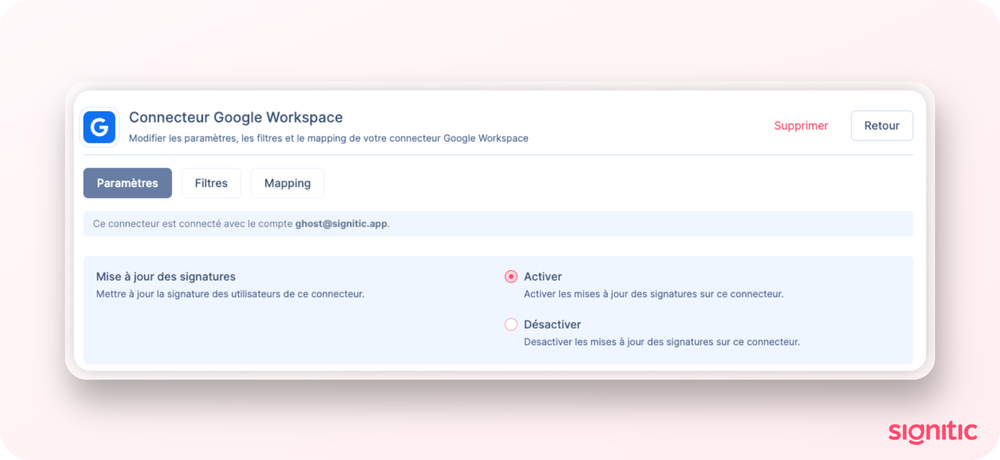
As with all Destination connectors, it is essential to enable signature updating if you wish to see the updated signatures on your users.
To do this:
Go to Connector settings
Select Google Workspace and click on “Edit integration”
Enable signature updating.
Refresh your Gmail page (Ctrl + Shift + R / Cmd + Shift + R) to see your new signature!