Log in to the Signitic application and click on the Settings, Preferences icon, then click the “Change my password”.
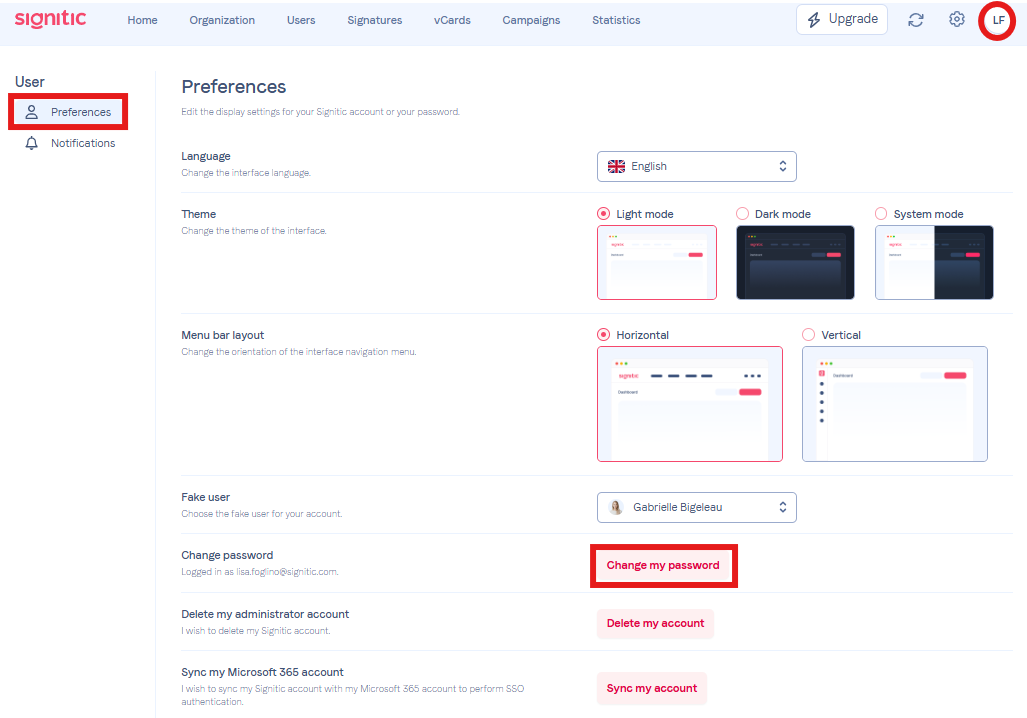
By clicking this button, you will receive an email to reset your password.
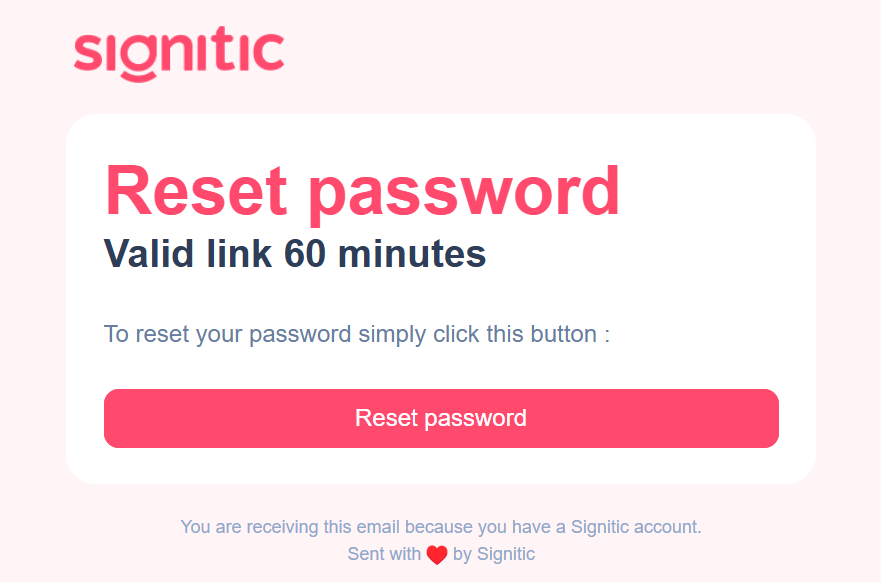
Click on “Reset password” and choose your new password.
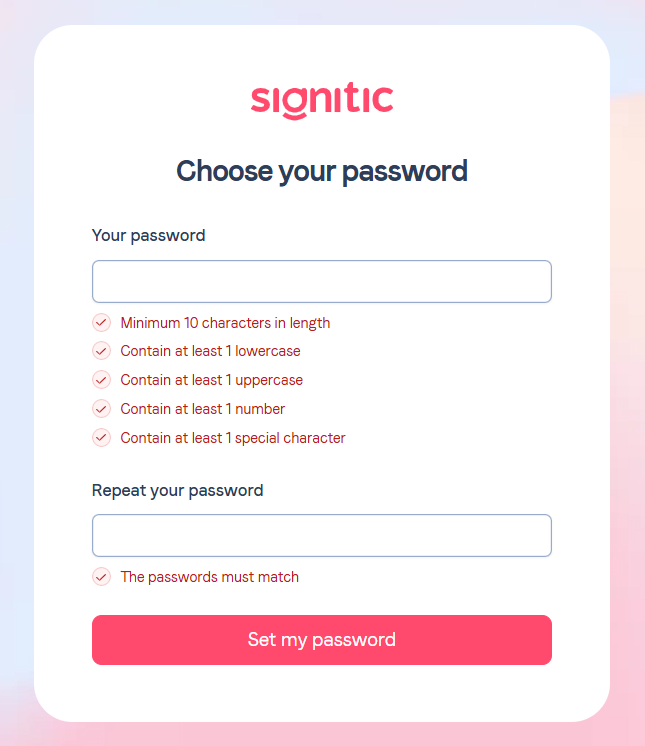
Then, save your new password by clicking on the Set my password.

Your new password has been successfully registered; you may now log in with it!
Request a password reset using the email address associated with your account.
Go to the Signitic login page, then select Forgot your password?
You can also go directly to the password reset page.
Enter the email address associated with your Signitic account, then submit your request.

Open the password reset email and follow the instructions to choose a new password.
Once you have changed your password, return to Signitic and sign in with your new credentials.
Check your spam folder.
Make sure you entered the correct email address.
If the issue persists, contact Signitic support.