The template management page brings together common actions: find a template, preview it, identify the users who use it, edit it or archive it.
In Signitic’s main menu, click Templates.
At the top right, click the arrow to the right of the “Create a template” button to open the dropdown menu.
Click “Manage my templates” to open the management page.
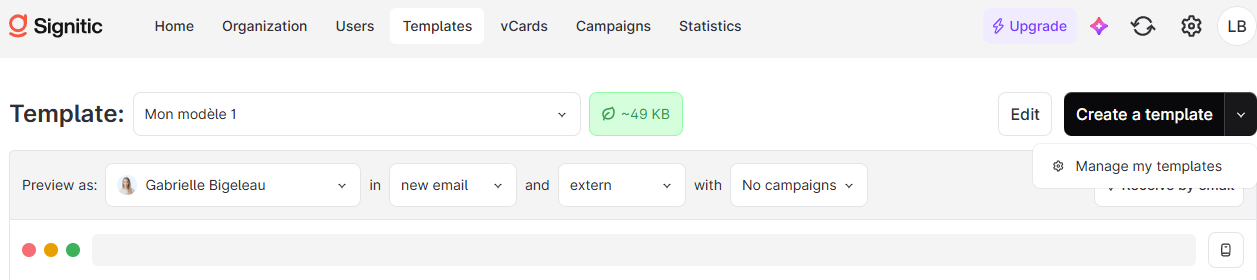
You will find the templates in your workspace here. Use the search to find the one you need and the available filters to narrow the list, including active templates.
Hover over a template preview to see how the signature looks.
The preview automatically adjusts to the actual size of its content. You can compare your templates and identify the one to edit before opening the editor.
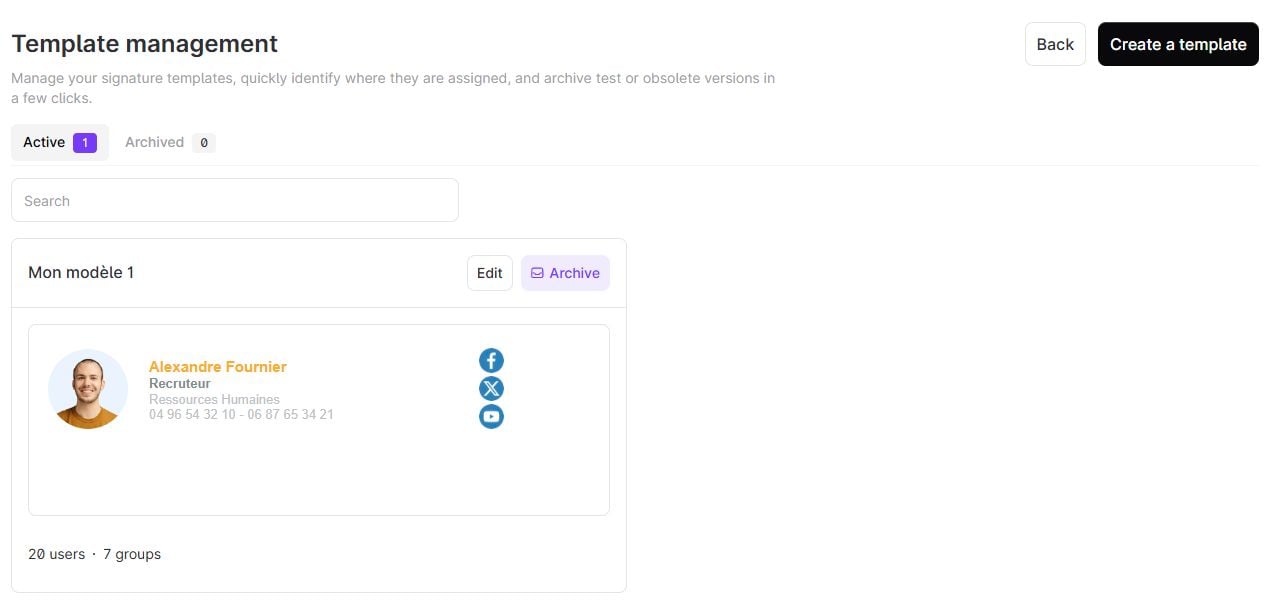
To see who uses a template, click “Assigned users” on the management page.
You can view the employees concerned and check how the template is used before editing it or considering archiving it.
On the management page, find the template and open its editing action.
In the editor, adapt the signature elements to your needs: text, logo, photo, links or other blocks. Attributes insert each user’s own data, such as their name or job title.
Check the result, then save your changes.

You can archive a template directly from the template list.
Find the template concerned.
View the assigned users to check how it is used.
Select the archive action.
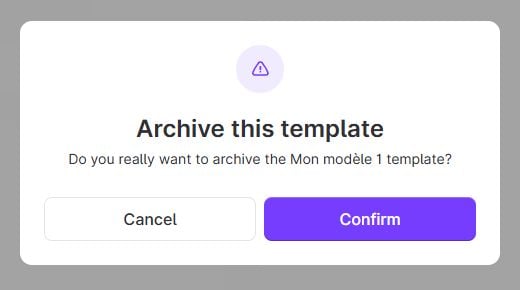
Read the confirmation message, then confirm if you wish to proceed.
You can reactivate a template after archiving it. On the template management page, open the Archived section, find the template concerned, then activate it again.