The condition builder lets you adapt the content of a signature template based on an attribute or email type. In the editor, define your rules and the text or variable to display, then insert the condition where you want it.
Open the signature template you want to customize and identify the variables to use. The available attributes depend on the variables accessible in the editor and the template data.
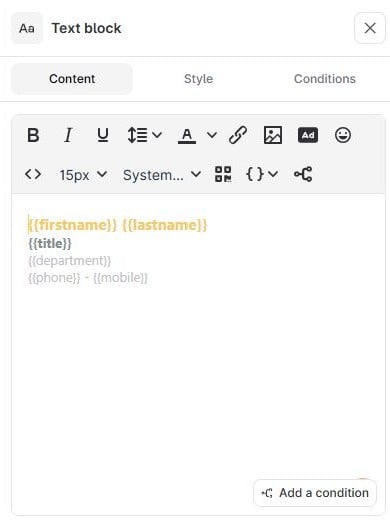
In the template editor, select a text block and place the cursor where you want to insert the conditional content. Open “Conditions” in the toolbar or click “Add a condition.” The “Create conditions” window opens.
In the first row, choose “Attribute” or “Email.” For an attribute, select the variable to test, then “is populated,” “is empty,” “contains,” or “does not contain.” For the last two operators, enter the text to search for.
For an email condition, choose the type offered in your context. The list includes “is a reply email.” The options “new email,” “internal email,” and “external email” depend on the template context and are not always available.
If necessary, click “+ Add” to create a second or third row. The builder accepts one to three conditions.
Choose the rule that applies to all rows: “all conditions are met” (AND) requires every condition to be true; “one of the conditions is met” (OR) requires at least one to be true.
Under “Display,” choose “Custom” to enter text, or select an available variable.
To specify other content when the rule is not met, click “+ otherwise,” then choose custom text or a variable under “Otherwise display.”
Review “Condition preview,” then click “Insert condition” to insert the block at the cursor position.
“Condition preview” displays the generated syntax. It does not show the final visual rendering of the signature.
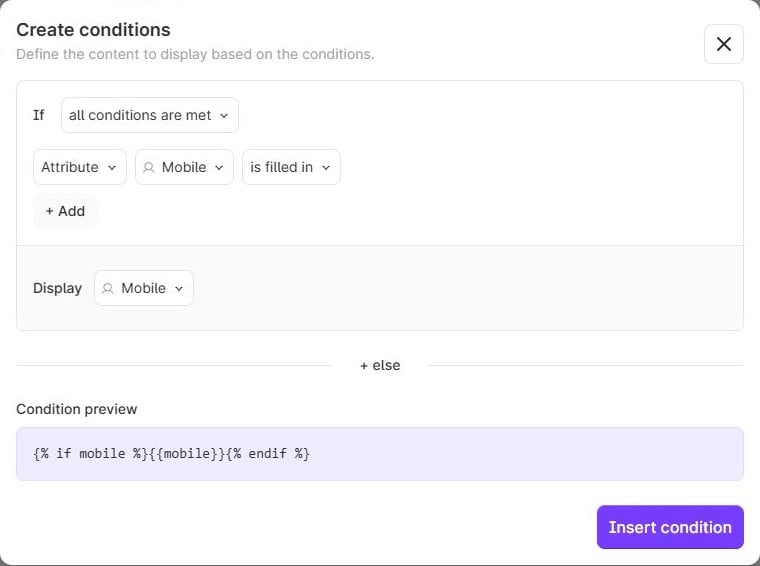
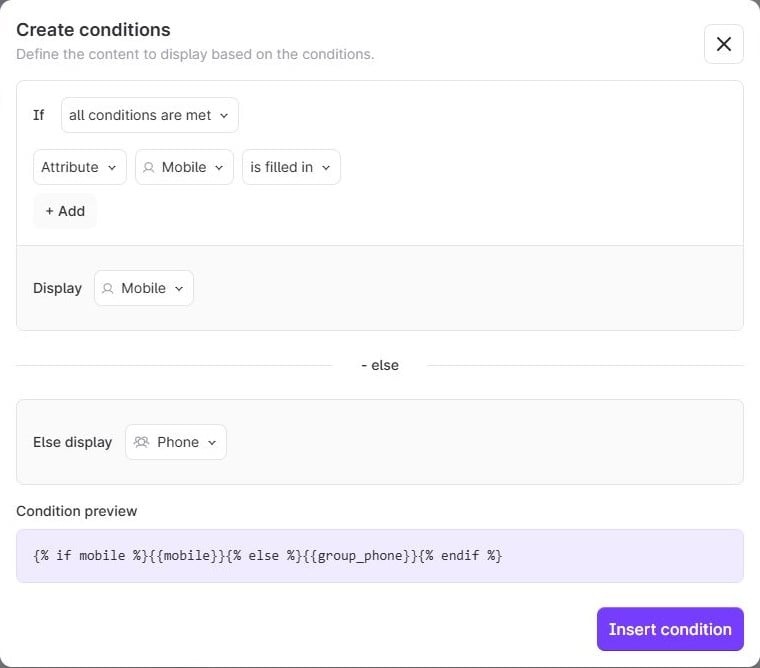
You want to display the user's mobile number when it is provided and, otherwise, their group's phone number.
Condition: “Attribute” → user variable “Mobile” → “is provided”.
“Display”: user variable “Mobile”.
“+ otherwise” → “Otherwise display”: group variable “Phone”.
If the mobile number is provided, it is displayed. Otherwise, the selected content is the group's phone number: make sure this information is provided for your groups.
Group variables include the name, parent name, website, mailing address, phone, fax, email, slogan, Trustpilot, additional fields 1 to 10, and primary and secondary colors. Choose from the available variables. The builder applies a single AND or OR mode to all rows.
Make sure you are testing the right variable: a user phone number and a group phone number correspond to different data.
For “contains” and “does not contain,” check the text entered and the value of the relevant attribute.
Check the AND/OR selection and the contents of the “Show” and “Otherwise show” branches.
If an attribute or email type is not displayed, the available choices depend on the context and the variables accessible in the editor.
If the problem persists, send support the selected rule and the preview syntax, removing any unnecessary personal data.
