Connector mapping lets you format a phone number before importing it into Signitic. This helps standardize the numbers used in your signatures without changing the data in your source directory.
Use an already configured connector with a “Mapping” tab. Identify the attribute to format, such as “Phone” or “Mobile”, and its source field. The transformation applies to all users imported through this mapping.
Open “Settings” → “Connectors”, then the relevant integration.
In the “Mapping” tab, find the phone attribute’s row and check the associated source field.
For that row, select “Import and transform the value”, then click “Edit the transformation”.

In the transformation window, click the “+” button between the source and the destination attribute.
Select “Format phone number”.
Open the “Format” list and select the desired presentation. For country-specific formats, choose the country and the national or international variant directly from this list.
Options include “France compact”, “France spaced”, “France international” and “International compact”, as well as US formats and country-specific national or international formats. The examples beside the formats help you choose.
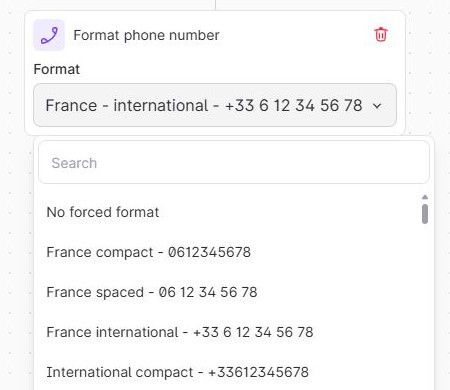
For the fictional source value “0612345678”, selecting “France - international - +33 6 12 34 56 78” produces “+33 6 12 34 56 78”. Choose the format according to the number’s country and your desired presentation.
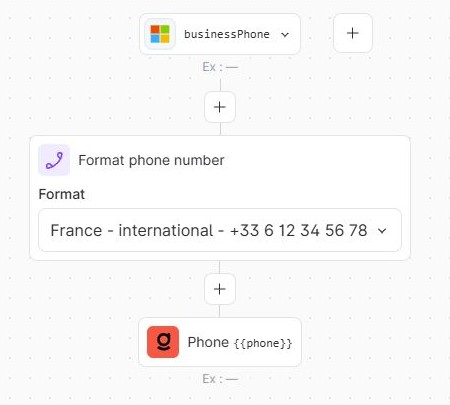
Check the result example shown in the window when a source value is available.
Click “Apply this transformation”.
Back on the connector page, click “Save” to keep the setting.
The setting acts on values imported into Signitic. It does not change the numbers stored in the source directory.
An empty value remains empty.
Invalid values and numbers containing an extension remain unchanged.
A number outside the selected format’s region remains unchanged. A French format therefore does not turn a German number into a French number.
Formatting does not correct incorrect source data.
Check the source field and destination attribute: “Phone” and “Mobile” are separate attributes.
Check the “Import and transform the value” mode, the formatting block and the selected format.
Check the source value: an invalid number, extension or different country can explain why it remains unchanged.
If the preview is correct but the profile remains unchanged, check connector synchronization and its data rewriting settings.
