
In your vCard settings, choose which user and group social networks to display. You can also set their order: it will be reflected in the preview and on the card shown to your visitors.
Before you begin
You must have access to the vCard module settings in Signitic. User and group networks are configured separately.
Choose the user's networks
In the Signitic menu, open vCards, then the Attributes tab.
In the User social networks section, make sure the section toggle is turned on.
Open Displayed social networks, then enable the networks you want and disable those you want to hide.
To change the order, drag a row using the dotted handle to the left of the network name.
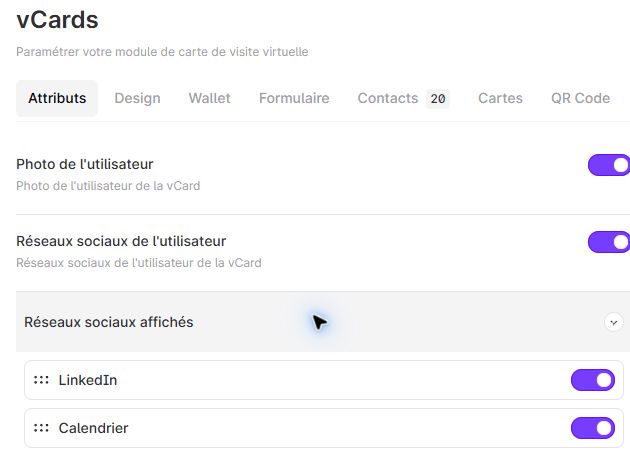
User networks: selection and drag handle in the demo.
Choose the group's networks
In the same tab, scroll down to Group social networks.
Make sure the section is enabled, then open Displayed social networks.
Enable or disable the desired networks and reorder the rows using their dotted handles. This setting is separate from the user’s social network settings.
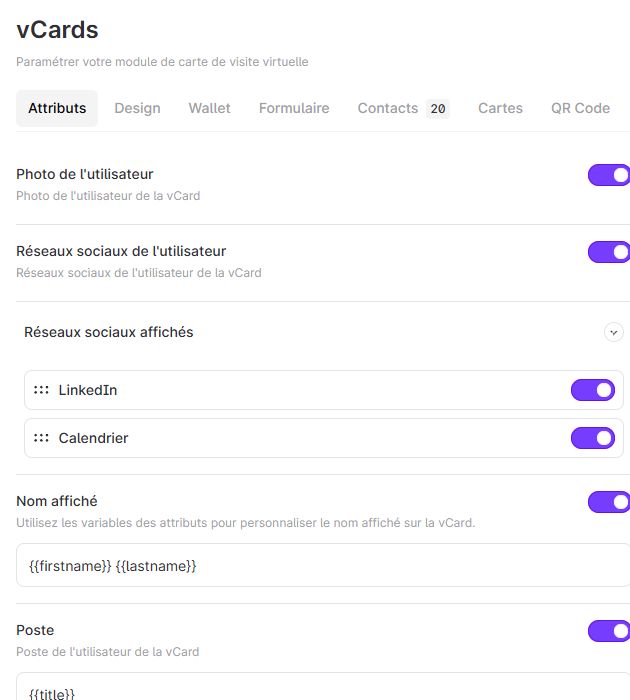
Group social networks: list and toggles in the demo.
Check the result
Check the selection and order in the preview. The configured order is also used on the rendered vCard. The default selections preserve the behavior of existing templates.
If a network does not appear
Make sure you have opened the correct section (user or group), that its toggle is enabled, and that the desired network is selected. Also, check whether the link has been entered correctly.