Your signature adapts to your usage. Depending on your workspace settings, you can choose which campaigns to display while composing your emails and manage automatic signature insertion.
If your administrator has added display conditions for your signature, it will be updated automatically when you write an internal or external email from Gmail.
Campaign selection depends on a workspace setting. If your administrator has disabled it, the selection controls may be unavailable. When campaign selection is allowed, you have the following options:
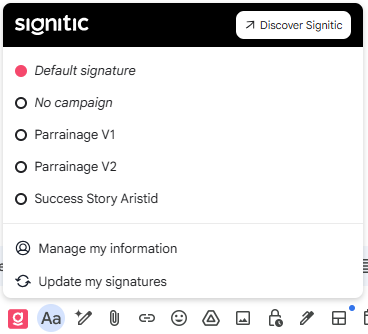
Default signature: View the signature assigned by default to your profile.
No campaign: You can choose not to display a campaign in your email.
You will be able to select the campaign you wish from the list your administrator allows you to use. A preview is available before selection.
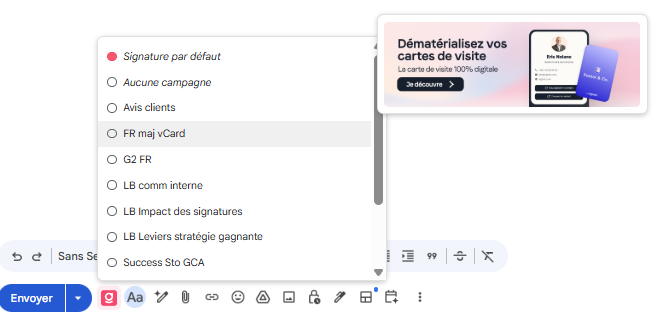
Permission to choose a campaign is separate from permission to change automatic signature insertion.
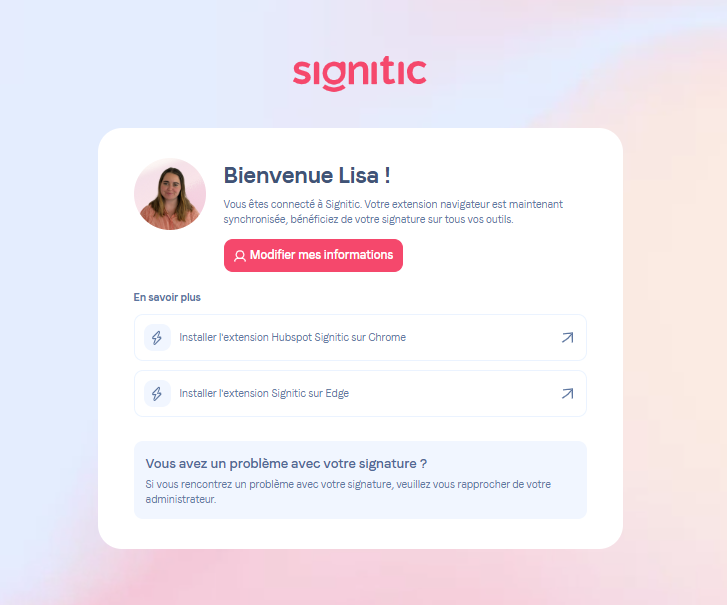
By clicking on “Edit my information”, you will access the form to edit your signature.
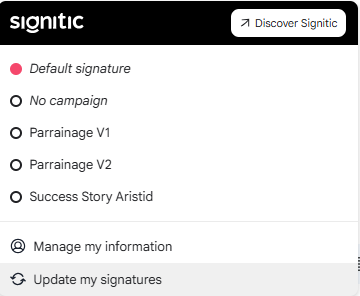
Synchronize my signatures: You can start a synchronization of your signatures in order to view the latest changes.
If your workspace allows you to change this setting, a checkbox appears in the fixed area of the compose panel, just above the button for managing your signature.
Clear this checkbox to disable future automatic insertions. This does not remove a signature already present in a draft. Manual insertion actions remain separate from this setting.
If permission to change this setting is unavailable, the checkbox may be hidden and automatic insertion remains enabled.

