
If you have a Microsoft 365 or Google Workspace connector, you have access to a Mapping tab in the connector settings.
Organization mapping
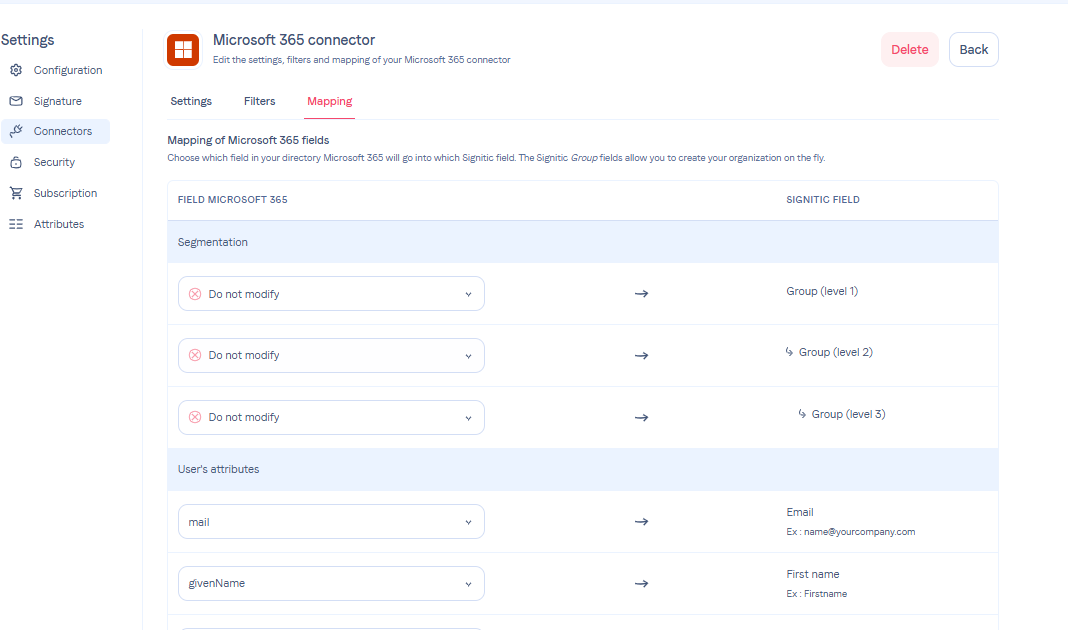
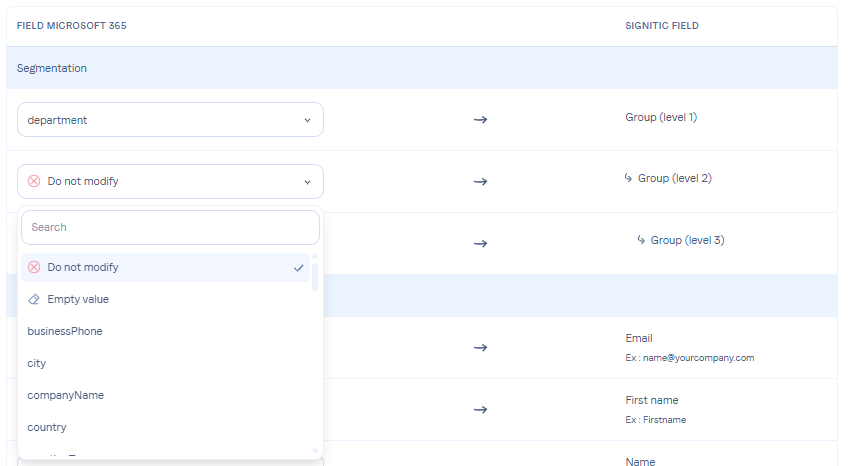
In the choice list, you have 3 fields available to automatically create your organization:
⚠ PS: It is important to understand that we retrieve attributes from user records and not from group assignments in 365.
Level 1 group
The user will be placed in the entity that corresponds to the value of the field in your directory. If the group does not exist, it will be automatically created. If the Group field is not used in the mapping, the user will be placed in the main group of the entity.
Level 2 group
Same as the Level 1 group field, but to build an organization with 2 levels of groups. For example, your different brands.
Level 3 group
The user will be placed in the group that corresponds to the value of the field in your directory. If the group does not exist, it will be automatically created.

- Do not modify = No modification or keep the value.
- Empty value = Delete the value, clear the field.
These fields allow you to adapt your mapping according to your needs.
Data mapping
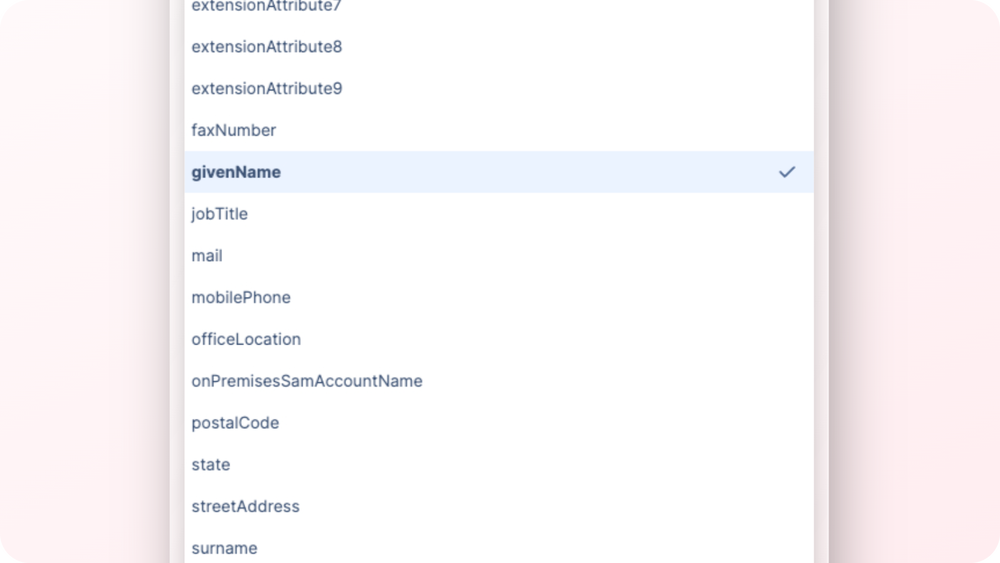
Here, you have the possibility to choose where each Signitic field comes from for the data of your users.
In the right-hand column, you have the list of destination fields on the Signitic side and on the left the possibility to choose the field from your Microsoft or Google directory.
These parameters are used when adding a new user in Signitic but also during the daily update if the data rewrite option is enabled on the connector.